Table of Contents
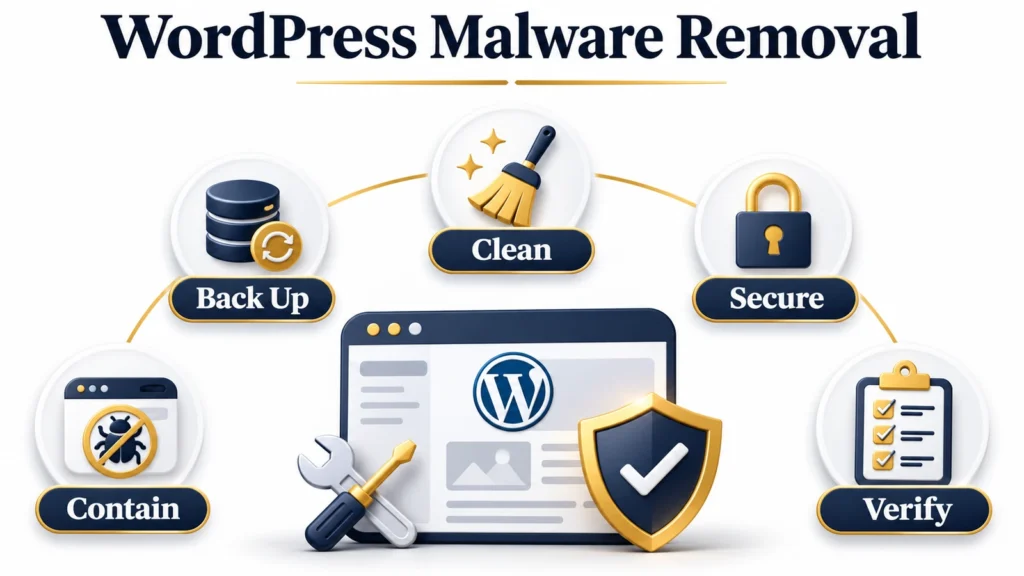
Clean a hacked WordPress site: To remove malware from a WordPress site, isolate the affected website, secure account access from a clean device, and preserve a private copy of the infected files, database, and logs. Replace compromised software with trusted copies, remove confirmed malicious content and unauthorized access, fix the entry point, rotate affected credentials, and test the repaired site before reopening it or requesting a Google security review.
A scanner reporting no threats is useful evidence, but it does not establish that every file, account, and server setting is safe. Successful recovery also depends on closing the access route that allowed the compromise.
If your hosting account or recovery email is compromised, several sites are affected, or customer information may have been exposed, involve your host and a qualified incident responder immediately. A WordPress file cleanup alone may not address the full incident.
Signs Your WordPress Site Has Been Hacked
Unexpected redirects, unfamiliar administrator accounts, injected spam pages, and hosting malware alerts can indicate a compromised WordPress site. Each finding needs investigation. A login failure or slow website, by itself, does not prove a hack.
| Symptom | What to investigate |
|---|---|
| Visitors reach unrelated spam or scam domains. | Redirect rules, injected JavaScript, database content, and CDN settings. |
| Redirects affect only mobile visitors or search traffic. | Conditional code, browser storage, referrer checks, and cached responses. |
| Search results contain pages you never created. | Unauthorized posts, generated URLs, sitemap changes, and injected links. |
| Unfamiliar users have elevated access. | Account ownership, capabilities, user metadata, and recent access changes. |
| Executable files appear in uploads. | File contents, origin, and whether the server can execute them. |
| Your host reports malware or outbound spam. | The host’s findings, affected paths, account scope, and server logs. |
| A browser displays a security warning. | Search Console Security Issues and Google Safe Browsing status. |
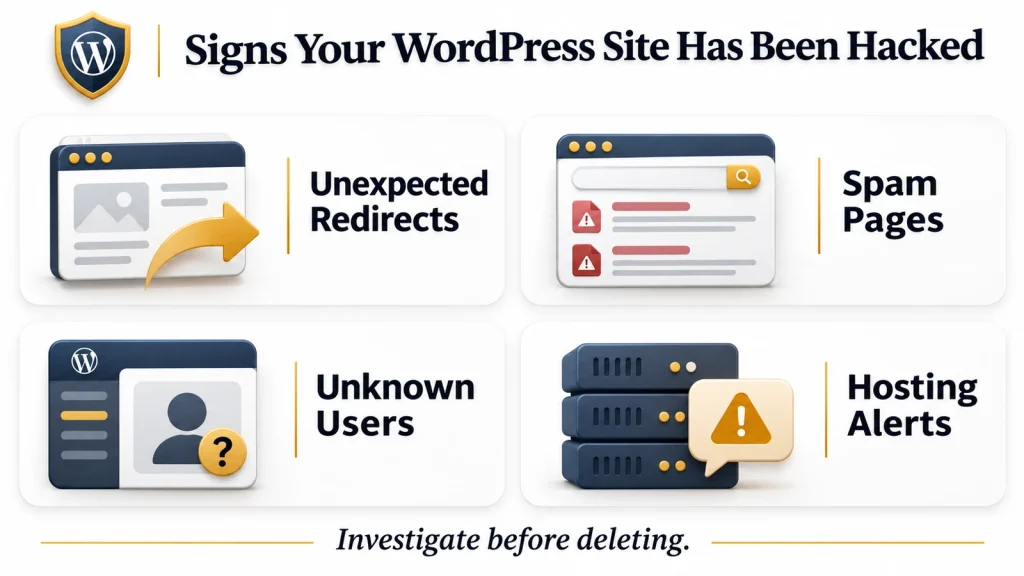
Google’s Security Issues report provides detected issue categories and example URLs. Examples are investigation starting points, not a complete inventory of affected content.
Before You Start: Contain the Hack and Back Up
Choose the recovery route that matches your access
| Your situation | First action |
|---|---|
| WordPress and hosting access still work. | Ask the host to isolate the site, preserve evidence, and check account scope. |
| WordPress access is lost but hosting access works. | Use hosting recovery tools after securing the hosting account. |
| Hosting or recovery email access is compromised. | Recover and secure those accounts through the provider before relying on WordPress cleanup. |
| Multiple sites or sensitive customer systems are affected. | Coordinate account-wide containment and specialist investigation. |
Isolate the affected website.
Ask your host to restrict public access or serve a temporary maintenance response outside the compromised WordPress installation. For temporary unavailability, a correctly configured HTTP 503 response is generally appropriate. Keep the outage as short as recovery safely allows.
A maintenance plugin does not necessarily stop malicious PHP from running. Isolation should address the actual affected account or server, not just hide the homepage.
Secure control accounts from a clean device.
Protect recovery email, hosting, registrar, and other controlling accounts immediately. Revoke unauthorized sessions and delegated access where the provider supports it. Do not enter new secrets through an infected workstation or a suspicious login page.
Some credentials will need another rotation after cleanup. Initial containment and final credential rotation serve different purposes.
Preserve files, the database, and logs privately.
Request a host snapshot where available. Otherwise, preserve the affected files, a database export, and relevant access and error logs. Label the copy as infected and restrict access to it.
Do not leave ZIP archives or database exports in a publicly accessible website folder. They can expose configuration secrets and private content. If a temporary export must be created there, protect it, verify the download, and remove the exposed copy promptly.

Keep older restore points untouched. A backup date helps establish a timeline, but does not prove that the backup is clean.
Start an incident record.
Record these details before removing evidence.
| Field | What to record |
|---|---|
| Detection time. | Date, time, and time zone of the first observed symptom. |
| Affected systems. | Domains, hosting accounts, databases, and related installations. |
| Indicators. | Suspicious URLs, file paths, account names, and alert details. |
| Preserved evidence. | Snapshot location, database export, and available logs. |
| Changes made. | Action, operator, time, and verification result. |
Keep passwords, private keys, and customer records out of support messages and public screenshots.
How to Scan a WordPress Site for Malware
Use external checks, server-side inspection, integrity checks, and account review together. Their coverage differs.
| Check | Useful for | Important limit |
|---|---|---|
| External scan. | Publicly served malicious content and visible redirects. | Cannot inspect private server files or the full database. |
| Host or security scanner. | Known malicious patterns and suspicious files within its access scope. | Coverage and detection vary by product and configuration. |
| File integrity check. | Differences from an official software release. | Does not establish that accounts, database content, or server settings are safe. |
| Manual inspection. | Unusual access, persistence, and unexplained changes. | Requires technical judgment and a trusted comparison baseline. |
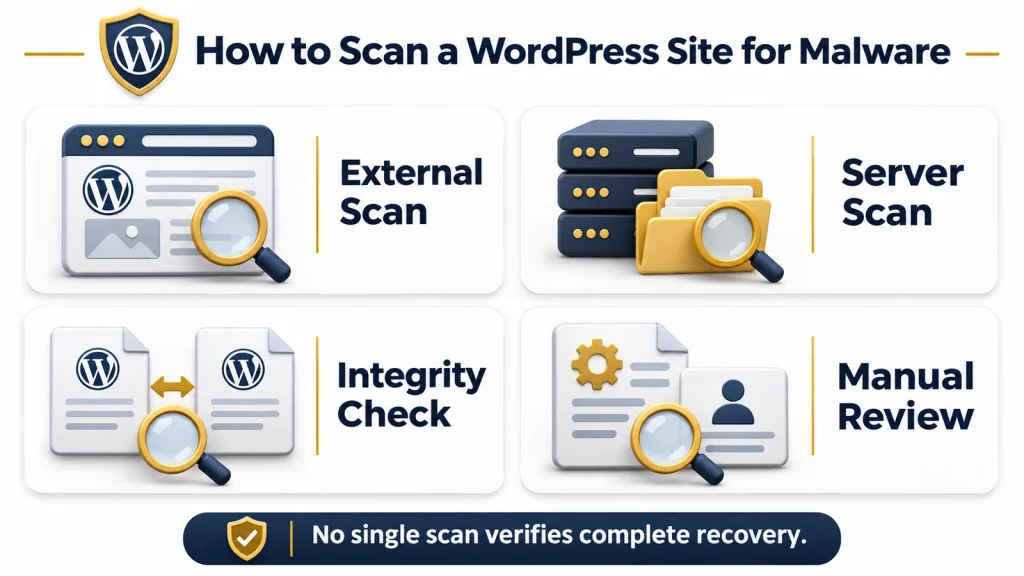
Do not install several unfamiliar security plugins during an incident. Ask the host what its scanner covers, including databases, account directories, and neighboring sites.
How to scan a WordPress website for malware with WP CLI
On a trusted SSH session, confirm the target installation directory and the installed version and locale before running integrity checks.
wp core verify-checksums --include-rootThe official core checksum command compares core files with WordPress.org checksums and runs before WordPress loads. Its root checking option also reports noncore items in the installation root. Those items require investigation, not automatic deletion.
For plugins with available WordPress.org checksums, an appropriately isolated environment can also be used.
wp plugin verify-checksums --allRead the plugin checksum documentation for scope and options. Missing checksums are an unverified result, not a clean result. Compare commercial and custom software against trusted vendor packages or your verified source repository.
Other WP CLI commands can load WordPress components. Skipping ordinary plugins does not automatically skip must-use plugins. When configuration files or automatic loaders are suspect, have an experienced operator establish a safe execution environment first.
Review findings before deleting anything.
Modification dates can guide investigation, but attackers can alter them. Encoded strings and functions such as eval or base64_decode can appear in legitimate code. An unfamiliar filename is also not proof of malware.
For each suspicious finding, establish its source, inspect its behavior, compare it with a clean baseline, and preserve evidence before removal. Scan the devices used to administer the site as well.
How to Remove Malware From a WordPress Site, Step by Step
Work in an isolated environment with recoverable backups. These steps cover common WordPress compromises. A server or hosting account compromise requires additional investigation by the provider or responder.
Step 1. Replace WordPress core with verified files
Obtain WordPress from its official source. Preserve evidence, then replace affected core directories with clean directories. Merging files over an infected folder can leave attacker-added files behind.
Verify the root files against the official release as well. Preserve the site’s configuration and unique content for separate inspection. Do not overwrite them indiscriminately.
An exact version match can help identify unauthorized differences. Before public reopening, move to a supported, patched version and test compatibility.
Step 2. Replace compromised plugins and themes
Use trusted downloads from WordPress.org or the original vendor. Preserve custom code before replacing affected directories. An update alone may not remove malicious files added outside the update package.
Remove unused and unsupported components after confirming dependencies. Do not restore pirated software or reuse unverified customizations. Review child themes, must use plugins, and WordPress drop-in files separately.
Step 3. Inspect uploads and custom files
Investigate executable files inwp-content/uploads, unexpected scripts, and unfamiliar configuration files. Preserve and quarantine suspicious items before removing confirmed malicious code.
An extension alone does not establish whether a file is safe. Inspect content and source. Some tools create legitimate placeholder files, while malicious content can use misleading extensions.
Ask the host to block script execution in media storage using rules appropriate to its server. Apache configuration snippets do not automatically apply to Nginx or every managed hosting environment.
Step 4. Review configuration and server persistence
Inspect wp-config.phpapplicable rewrite rules, PHP settings, and automatic loading mechanisms. A sample configuration file is a reference, not a complete replacement for a production site’s legitimate settings.
Ask the host to inspect parent directories, account-level scheduled jobs, SSH access, PHP prepend settings, and other sites sharing the same account. Check CDN scripts and redirect rules if those systems are in scope.
Do not delete every unfamiliar .htaccess file. Hosting, caching, access restrictions, and security tools may legitimately create them.
Step 5. Clean confirmed database injections
Export the database before editing. Investigate the actual table prefix and check affected content, metadata, options, users, and relevant plugin tables.
| Area | What to investigate |
|---|---|
| Site options. | Unauthorized URL changes, injected settings, and unexpected code. |
| Posts and metadata. | Spam content, malicious embeds, and unauthorized links. |
| Users and user metadata. | Unknown accounts, elevated capabilities, and unauthorized access credentials. |
| Plugin tables. | Malicious data stored by affected extensions or integrations. |
Search for known malicious domains and identified payloads. Do not delete every script tag, encoded value, or matching keyword. Legitimate analytics, embeds, and page builder settings can contain similar text.
Serialized data requires special care. The official WP CLI search and replace command supports serialized values and dry runs, but it cannot decide which content is malicious. Use narrowly scoped, reviewed changes and test the result before applying it to production.
Step 6. Remove unauthorized users and persistence
Confirm account ownership and capabilities before removing access. The users table alone does not identify every administrator role. Check related user metadata, and account for Multisite permissions if applicable.
Review both WordPress scheduled events and hosting cron jobs. Record suspicious commands before changing them. Commands using PHP or downloading files can be legitimate, so verify the destination, script, owner, and purpose.
Revoke unauthorized application credentials and access keys as part of the credential process below.
Step 7. Fix the entry point and verify recovery
Investigate the available logs, software vulnerabilities, stolen accounts, and access changes. Patch, remove, or isolate the identified route. If the entry point remains uncertain, document that uncertainty and widen the investigation.
Use these reopening checks.
- Known malicious files, payloads, and redirects are no longer detected.
- Unauthorized accounts, sessions, keys, and scheduled persistence are removed.
- The identified vulnerability or access route is addressed.
- Affected credentials are rotated from a clean device.
- Login, forms, checkout, and other critical functions pass appropriate tests.
- Relevant caches are purged, and public responses retested.
- Legitimate pages return expected status codes and indexing directives.
- Logging, backups, and monitoring are operating.
If a check fails, keep the affected system isolated and investigate further. Record what was checked and what remains uncertain rather than describing a scanner result as a guarantee.
WordPress Redirect Malware Removal
WordPress redirect malware removal requires finding both the redirect payload and the mechanism that restores it. A redirect can originate in files, database content, hosting settings, DNS, or an external platform.
| Location | What to inspect |
|---|---|
| Rewrite and hosting rules. | Unauthorized destination domains and conditional rules. |
| Database options and content. | Changed URLs, injected scripts, and malicious embeds. |
| Themes, plugins, and JavaScript. | Modified files, unfamiliar loaders, and appended code. |
| CDN and DNS configuration. | Unauthorized forwarding, scripts, records, and account access. |
| Caches. | Previously generated malicious responses still being served. |
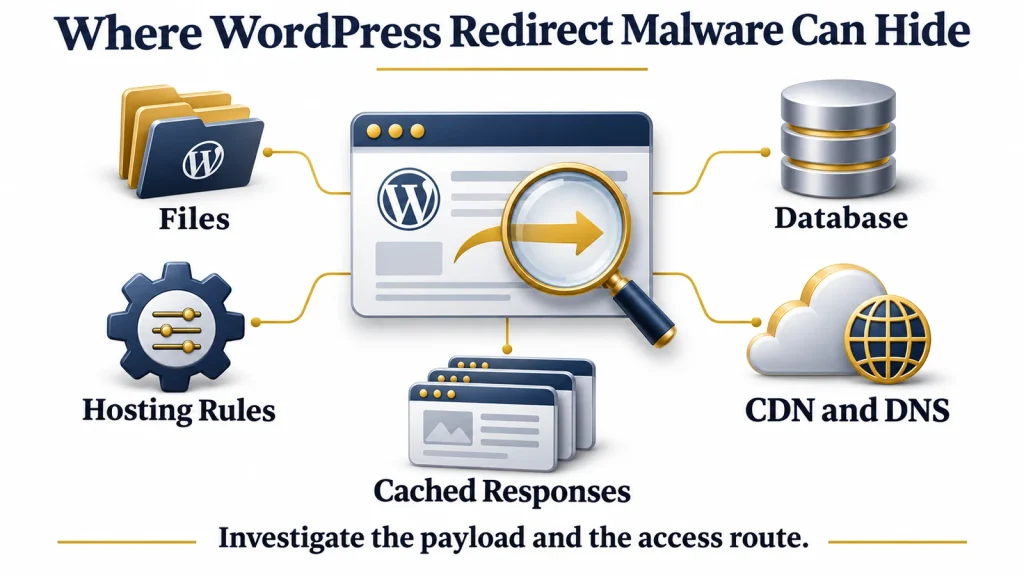
Conditional redirects may depend on device, referrer, location, cookies, or login state. A normal homepage visit from an administrator account is not a sufficient test.
Prefer controlled inspection by an experienced operator. Where browser testing is necessary, use an isolated test environment without saved credentials. Do not bypass security warnings, download prompted files, or enter information into destination pages.
Test multiple affected URLs and relevant visitor conditions. Preserve the destination domain as an indicator, but expect encoded or externally loaded payloads that a simple text search may miss.
A redirect loop or an old domain redirect can also be a configuration problem. Review recent changes and evidence before diagnosing malware.
How to Remove Malware From a WordPress Site in cPanel
To remove malware from a WordPress site in cPanel, use the same recovery workflow with File Manager, database tools, and hosting access controls. cPanel is an interface, not a malware removal guarantee. Providers may expose different tools or permissions.
File Manager
Enable hidden file visibility and confirm the correct document root. Preserve a private backup before editing. Replace affected core, plugin, and theme directories with verified copies, then inspect unique files separately.
Do not leave downloadable backups in public_html. Review any scanner findings with your host before applying bulk deletion.
Cron Jobs
Record each suspicious entry, identify its owner and purpose, and inspect the target script. Disable or remove confirmed unauthorized persistence. Coordinate legitimate backup and maintenance jobs to avoid disrupting recovery.
phpMyAdmin
Export the correct database. Check site URLs, affected content, users, and related permissions. Search results are investigation leads. Avoid broad deletion and direct edits to serialized values without understanding their structure.
Other hosting panels
If your host uses hPanel or another dashboard, the tool names and locations will differ. Ask support for the site’s document root, database mapping, scanner scope, private snapshots, and account-level cron controls. Do not follow a cPanel menu path blindly on another platform.
Reset Every Password, Key, and Access Point
Secure controlling accounts during initial containment. After the compromised environment is cleaned, rotate affected secrets again where needed and verify that unauthorized access has ended.
| Access point | Recovery action |
|---|---|
| Recovery email, hosting, and registrar. | Protect logins, revoke unauthorized sessions and users, and enable multifactor authentication. |
| WordPress users. | Reset affected passwords, review privileges, and invalidate compromised sessions. |
| WordPress Application Passwords. | Review integrations and revoke unauthorized or exposed credentials. |
| SSH and file transfer access. | Review authorized keys and accounts, remove unauthorized access, and rotate affected secrets. |
| Database accounts. | Rotate exposed credentials and update application configuration securely. |
| WordPress keys and salts. | Replace configuration secrets to invalidate existing login cookies. |
| CDN, backup, and third-party services. | Review access, tokens, webhooks, and integration credentials. |
| Search Console. | Audit owners, users, and unfamiliar ownership verification methods. |
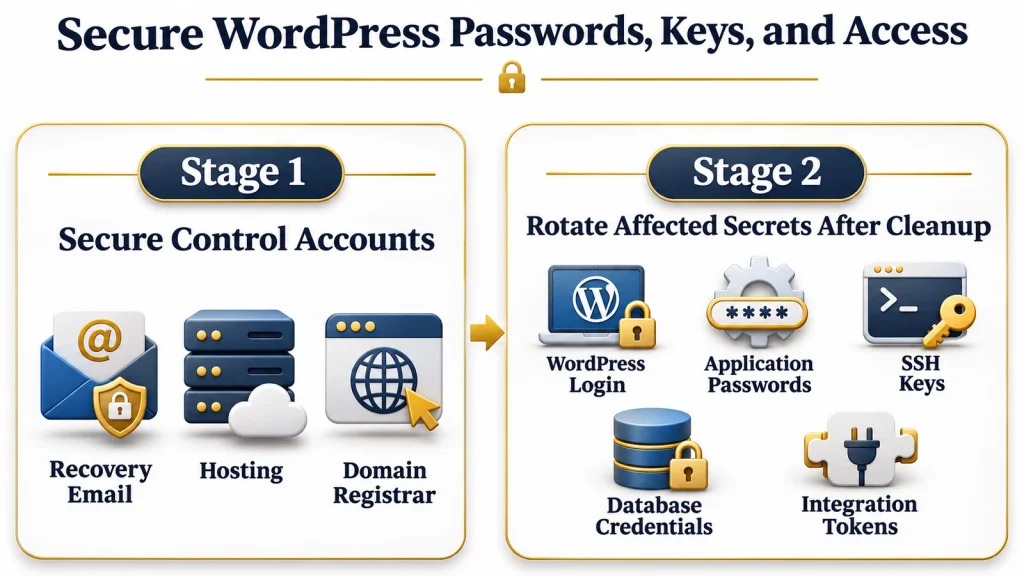
WordPress Application Passwords provide separately revocable API access. Include them in the incident review rather than treating ordinary browser logins as the full access inventory.
Coordinate credential changes with integrations to avoid preventable outages. Never publish configuration secrets or place new passwords directly into shared terminal transcripts.
Remove Google Warnings and Request a Review
Once the affected content and access route are addressed, inspect both Search Console Security Issues and Manual Actions. Follow the process for the report that contains an issue. A security review and a manual action reconsideration are different processes.
For a security review, describe the detected problem, the changes made, and the verification completed. Ensure repaired URLs are accessible to Google’s review systems. Robots crawling restrictions and noindex directives have different functions. Review indexing settings separately for legitimate pages you want to appear in search.
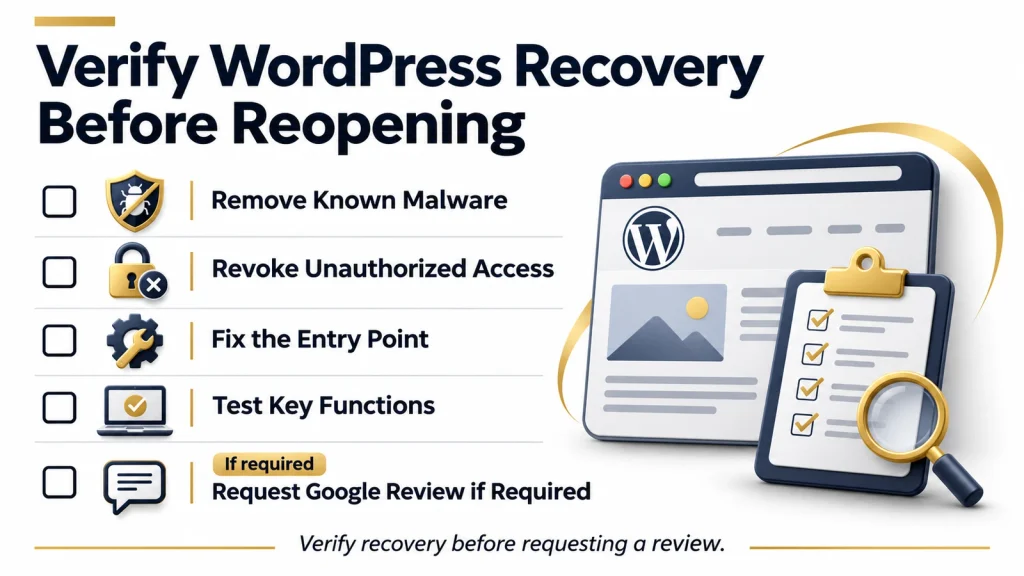
Google’s Security Issues documentation explains the review process. Processing time varies. Google’s warning guidance also notes that warning systems can take additional time to update after approval. Do not promise a fixed warning removal deadline.
For account setup and report navigation, see the Google Search Console guide.
Remove hacked spam URLs correctly.
Unauthorized URLs with no legitimate replacement should normally return 404 or 410 after removal. Do not redirect every spam URL to the homepage. Restore legitimate pages that were altered, and use relevant redirects only when there is a genuine replacement.
Google’s Removals tool can temporarily hide eligible results. It does not remove the underlying compromise or replace permanent URL handling. Browser warning removal and ranking recovery are separate outcomes.
Why WordPress Malware Keeps Coming Back
When WordPress malware keeps coming back, investigate surviving persistence, repeated credential theft, and unresolved vulnerabilities. Repeating the same file deletion does not establish that the source is gone.
| Possible cause | What to verify |
|---|---|
| Remaining backdoor. | Unique files, uploads, loaders, and directories outside the site root. |
| Scheduled reinfection. | Both hosting cron jobs and WordPress scheduled events. |
| Unauthorized access. | Users, sessions, Application Passwords, SSH keys, and provider access. |
| Database payload. | Identified malicious values across relevant tables and metadata. |
| Neighboring installation. | Other sites and abandoned staging copies sharing account access. |
| Vulnerable software. | Whether the exploited component was actually patched or removed. |
| Contaminated restore. | The restored files, database, accounts, and original entry point. |
| External configuration. | DNS, CDN scripts, redirects, and account ownership. |
If the same indicators return after a documented cleanup, widen the scope. A fresh installation or new hosting environment may be appropriate, but copying unverified content, credentials, or configuration can reproduce the incident.
How to Prevent Reinfection
After recovery, prioritize controls that address the incident’s actual cause. The WordPress hardening guide provides a broader security baseline.
- Keep supported software patched and remove unused components.
- Use unique credentials, appropriate multifactor authentication, and least privilege.
- Maintain private backups with multiple restore points and test restoration.
- Restrict file ownership and permissions according to the host’s configuration.
- Ask the host to prevent executable uploads from running where appropriate.
- Monitor account changes, file changes, uptime, and security alerts.
- Retain useful logs and review suspicious activity after reopening.
- Audit old installations, integrations, and delegated access regularly.
Avoid blanket permission changes without checking ownership and hosting requirements. Disabling the dashboard file editor can reduce one avenue of misuse, but it does not remove existing malware or stop all file modification.
For the wider prevention framework, see the website security guide.
DIY Cleanup vs Professional Malware Removal
DIY cleanup is most suitable when the scope is limited, recoverable evidence exists, and the operator understands files, databases, and hosting access. It is a poor choice when the scope is uncertain, or mistakes could expose customers or interrupt critical systems.
Seek qualified help when the hosting account is compromised, multiple sites are affected, infection returns, or sensitive data may have been accessed. An online store may require investigation of payment integrations and unauthorized checkout scripts, not just WordPress core files.
If personal data exposure is possible, preserve evidence and obtain advice on obligations in the applicable jurisdictions. Malware removal alone does not determine whether a reportable breach occurred.
Frequently Asked Questions
Can I clean a hacked WordPress site without a plugin?
Yes. File replacement, database inspection, access review, and server investigation can be performed without a WordPress security plugin. The work still requires suitable expertise and trusted tools. A plugin can support detection, but does not replace account and server checks.
Is it a virus or malware on my WordPress site?
Malware is the broader term for malicious software. WordPress compromises can involve backdoors, injected scripts, spam content, and credential misuse. Identify the actual behavior rather than relying on the label.
Will deleting the infected plugin remove the malware?
Not necessarily. The plugin may contain a payload, be the original vulnerable component, or be unrelated to the access route. Investigate other files, database content, accounts, and persistence before considering recovery complete.
Should I restore a backup or clean the site?
Restore when you have a sufficiently verified recovery point and can address the cause of compromise. Test the backup in isolation. Its date alone does not prove cleanliness. Account recovery, patching, credential rotation, and verification still matter.
How long does it take to clean a hacked WordPress site?
There is no reliable universal duration. Scope, access, available backups, custom code, and potential data exposure affect the work. Google review and warning updates, where needed, add a separate waiting period.
Will my Google rankings recover after a hack?
Recovery is possible, but neither cleanup nor warning removal guarantees previous rankings. Restore legitimate content, remove unauthorized URLs correctly, resolve reported issues, and monitor search performance over time.
Can my hosting provider remove the malware for me?
Some providers offer scanning or cleanup. Confirm whether the work covers files, databases, account persistence, neighboring installations, and root cause investigation. Do not assume a scanner alert includes a complete recovery service.
Is a free malware scanner enough?
No single scan establishes complete recovery. An external scanner sees public responses, while a server scanner sees only its permitted scope. Combine scanning with verified file sources, database inspection, access review, and functional testing.
What should I do if WordPress malware keeps coming back?
Keep the affected system isolated and investigate a wider scope. Check scheduled persistence, surviving payloads, compromised accounts, neighboring sites, and the original vulnerability. Escalate when the reinfection mechanism remains unknown.
To discuss a scoped recovery assessment, contact Marjan Web Studio’s website security service. Share the symptoms and hosting details through an agreed secure channel. Do not send passwords in an initial inquiry.
This guide explains common recovery procedures and does not present a client case study, hands-on test result, or guarantee that a particular website is clean.