
Table of Contents
WordPress favicon not showing in Google Search? Your website may display the correct icon in browser tabs while Google shows a generic globe, an outdated logo, or no recognizable favicon at all.
This difference does not necessarily mean your WordPress installation is broken. Google discovers and processes favicons separately from browsers, and a technically valid favicon is not guaranteed to appear in search results.
The most useful approach is to identify the actual failure before changing your WordPress settings.
Quick answer: Verify your WordPress Site Icon, inspect the favicon declaration on your homepage, test the image URL, confirm that Googlebot can crawl the homepage and Googlebot-Image can access the favicon, and check Google’s supported formats and dimensions. Correct any confirmed errors, then request homepage recrawling in Google Search Console.
Quick Diagnosis: Why Is My WordPress Favicon Not Showing in Google Search?
Start by matching your problem to the symptoms below.
| Symptom | Possible cause | First action |
|---|---|---|
| Favicon missing in browser and Google | Missing Site Icon or incorrect HTML | Check WordPress settings |
| Favicon visible in browser but not Google | Crawling, eligibility, or processing | Inspect Google requirements |
| Google displays a globe | Google is not displaying your custom favicon | Test the icon and homepage |
| Google shows an old favicon | Cached HTML, old declaration, or delayed processing | Verify the live icon URL |
| Favicon URL returns 404 | Missing image or incorrect path | Correct the file reference |
| Favicon URL returns 403 | Access restrictions | Inspect server or CDN rules |
| Several favicon URLs appear in HTML | Potentially conflicting declarations | Identify their sources |
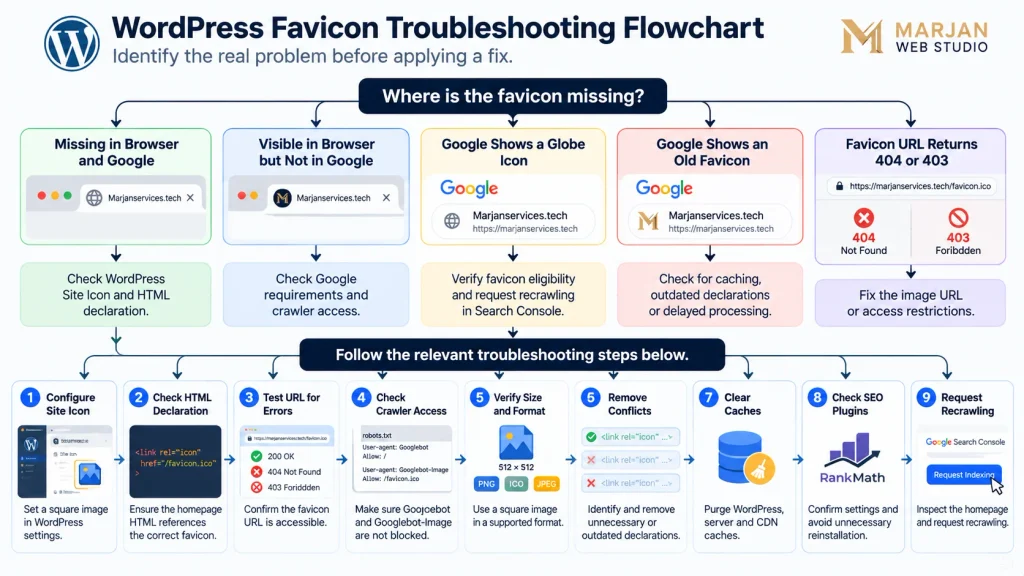
A browser-visible favicon is useful evidence, but it does not prove that Google’s crawler can access the same image.
Google’s Favicon Requirements for WordPress Websites
Before applying a fix, check whether your favicon meets Google’s published requirements.
Google requires a square favicon measuring at least 8 × 8 pixels and recommends dimensions larger than 48 × 48 pixels.
Google’s documented supported formats include BMP, GIF, ICO, PNG, JPEG, PPM, and TIFF.
The homepage must be accessible to Googlebot, and the favicon file must be accessible to Googlebot-Image.
Google also recommends maintaining a stable favicon URL.
WordPress source image versus Google favicon size
WordPress recommends a square Site Icon source image of at least 512 × 512 pixels. This is a WordPress recommendation, not Google’s minimum requirement.
For a typical WordPress website, a clear 512 × 512 PNG source image is a practical starting point.
Can you use WebP as a favicon?
WebP works well for ordinary WordPress article illustrations. However, Google’s favicon documentation does not list WebP among its supported favicon formats.
Use a documented supported format for the favicon intended for Google Search.
Can every page have a different favicon?
Google supports one Search favicon per hostname.
For example, example.com and blog.example.com can have different favicons. Individual articles under the same hostname do not receive separate Google Search favicons.
Reference: Google Search Central — Favicon Requirements
Fix 1: Configure the WordPress Site Icon Correctly
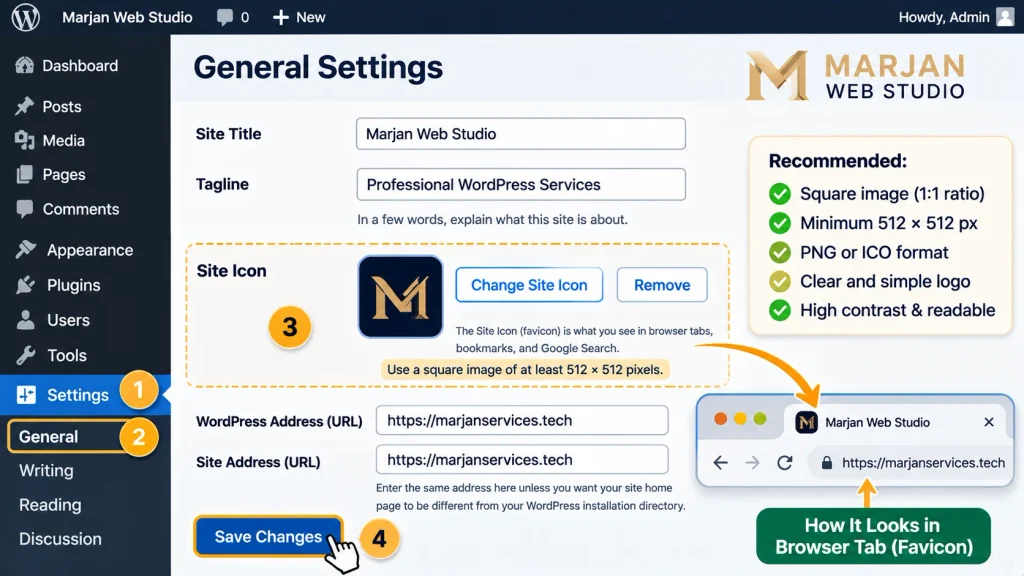
A missing or incorrectly configured Site Icon is one of the first issues to investigate.
WordPress 6.5 and newer
- Sign in to your WordPress dashboard.
- Open Settings → General.
- Locate the Site Icon setting.
- Select an appropriate square image.
- Save the changes.
- Open the public homepage and check the browser tab.
WordPress block themes
If your block theme exposes Site Identity controls, you can also check:
Appearance → Editor → Identity → Site Icon
The available interface depends on the active theme and WordPress version.
Older WordPress installations
In many older classic-theme installations, the Site Icon is available under:
Appearance → Customize → Site Identity
Avoid installing another favicon plugin before checking whether WordPress already provides the functionality you need.
Verification: Inspect the public homepage. If the browser still shows no favicon, continue with the HTML declaration check.
Reference: WordPress — Create a Favicon
Fix 2: Inspect the Homepage Favicon Declaration
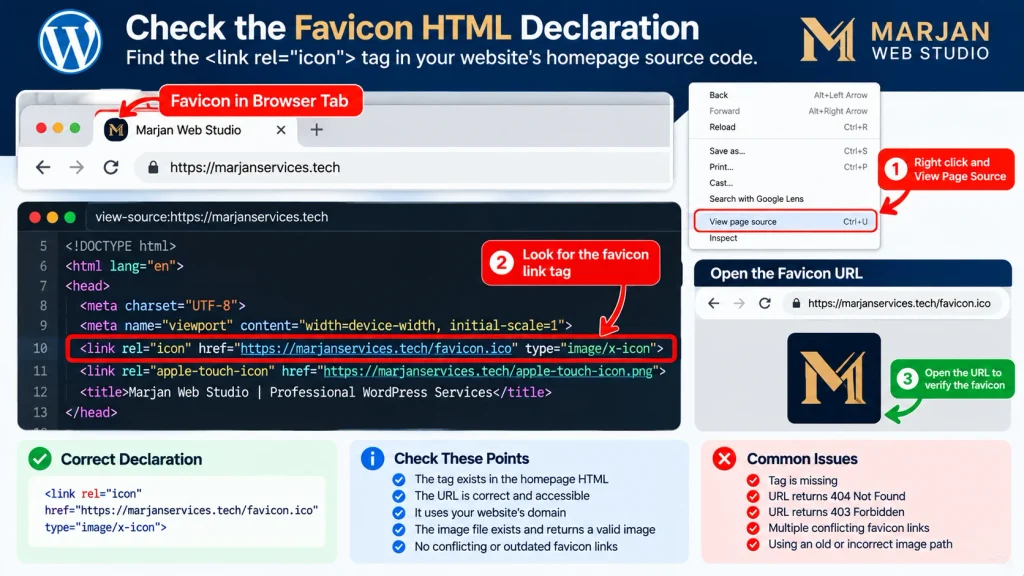
Google discovers favicon information from the homepage’s HTML.
Open the public homepage, select View Page Source, and search for:
rel="icon"
A favicon declaration may look like this:
<link rel="icon" href="https://example.com/favicon.ico">The URL is an example, not a file path that every WordPress website must use.
What to inspect
Check whether the declaration:
- Exists in the homepage HTML.
- References the intended image.
- Uses the correct website hostname.
- Points to a file that actually exists.
- Conflicts with other icon declarations.
WordPress may generate favicon files in the uploads directory rather than at the domain root.
Verification: Copy the declared image URL into a new browser tab. It should open the intended favicon.
If the declaration is missing, investigate the theme’s header output and the WordPress Site Icon configuration.
Fix 3: Check Favicon HTTP 403, 404, and Redirect Errors
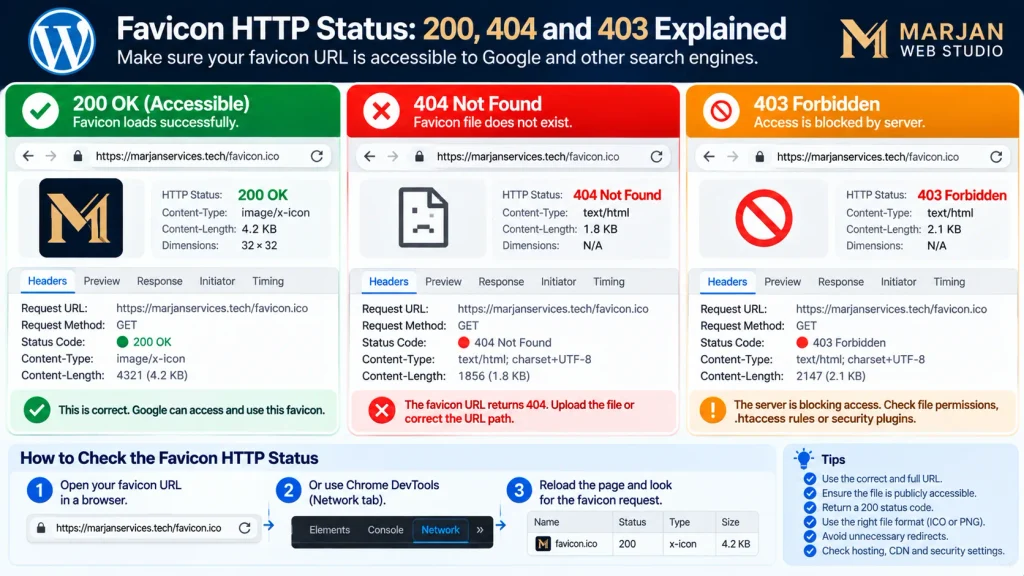
A favicon cannot be reliably discovered if its URL points to a missing or inaccessible resource.
Open the exact favicon URL found in your homepage HTML.
For a more detailed check, a developer can inspect its HTTP response using browser developer tools or an HTTP client.
HTTP 200: File served successfully
A successful response indicates that the file was served to the test request.
It does not establish that Googlebot-Image receives the same response.
HTTP 404: File not found
Possible causes include:
- Incorrect image URL.
- Deleted Media Library file.
- Outdated theme configuration.
- Incorrect path after a website migration.
- An old favicon declaration.
Fix: Restore the intended image or correct the declaration.
HTTP 403: Access denied
Possible causes include:
- Hosting security rules.
- CDN firewall restrictions.
- Security plugin configuration.
- Hotlink protection.
- Other access-control settings.
Fix: Identify the actual rule responsible and correct it without disabling unrelated website security protections.
Unexpected redirects
Check whether the favicon URL redirects to an incorrect location, inaccessible resource, or redirect loop.
Verification: The final resource should return the intended image successfully.
Fix 4: Verify Googlebot and Googlebot-Image Access

Google uses different crawlers for the homepage and favicon image.
Googlebot must be able to access the homepage. Googlebot-Image must be able to access the favicon.
Check the website’s robots.txt file:
https://example.com/robots.txt
Look for rules that might block the favicon’s directory or resource.
For example:
User-agent: Googlebot-Image
Disallow: /wp-content/uploads/
If the favicon is located inside /wp-content/uploads/, this rule could prevent Googlebot-Image from retrieving it.
Do not remove robots.txt rules indiscriminately. Confirm the actual favicon location and identify which rules apply.
What if robots.txt allows access?
Robots.txt is only one part of the diagnosis.
The server or CDN could still deny access, return an error, or serve a different resource to certain requests.
Verification: Check the effective crawling rules, actual resource response, and available server or CDN logs.
For additional crawling guidance, read the Technical SEO Guide.
Fix 5: Correct Favicon Dimensions, Format, and Design
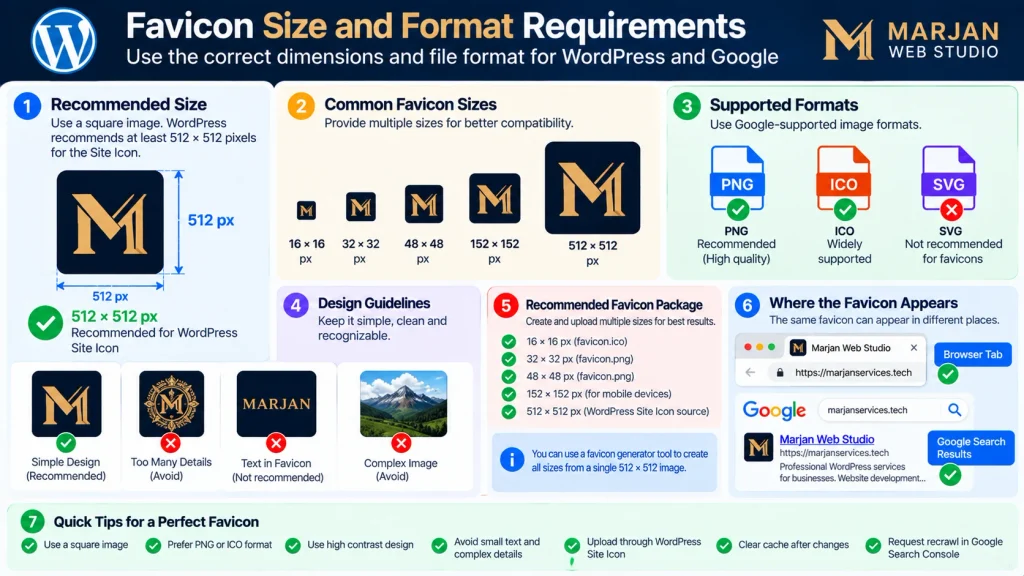
Google may not display an icon that fails its documented eligibility requirements.
Check the dimensions
The favicon must be square and at least 8 × 8 pixels.
Google recommends dimensions larger than 48 × 48 pixels.
A 48 × 48 favicon is not automatically invalid, but a larger source image can provide better flexibility.
Check the image format
Choose a documented Google-supported favicon format, such as PNG or ICO.
Do not assume that every image format supported by modern browsers is also documented as supported for Google Search favicons.
Check visual clarity
A favicon should remain recognizable when displayed at a small size.
Avoid overly complex text, fine details, and designs that become unreadable when reduced.
Verification: Check the image’s actual dimensions, file type, and appearance at small sizes.
Fix 6: Identify Conflicting Favicon Declarations
Themes, WordPress core, plugins, and custom code may generate favicon-related HTML.
Multiple icon declarations are not necessarily incorrect. However, conflicting URLs can complicate troubleshooting.
For example, one declaration might reference the new logo while another points to an old image that no longer exists.
Diagnostic procedure
- Open the homepage HTML source.
- Find all favicon-related declarations.
- Record each referenced URL.
- Test the URLs individually.
- Identify whether WordPress, the theme, or a plugin generates them.
- Remove only obsolete or unintended declarations.
Do not delete declarations blindly.
Verification: The homepage should consistently reference the intended favicon resources without broken or unintended links.
Fix 7: Clear Relevant WordPress and CDN Caches
Caching can cause visitors to receive an outdated favicon or an old HTML declaration.
Common cache layers include:
- Browser cache.
- WordPress page cache.
- Hosting cache.
- CDN cache.
- Cached theme-generated HTML.
Recommended procedure
First, confirm that WordPress has the correct Site Icon selected.
Next, inspect the live favicon declaration and open its image URL.
If the website is serving outdated information, purge the relevant cached resources.
For websites using LiteSpeed Cache, check the plugin’s cache-management options.
After clearing the appropriate caches, reload the homepage and inspect its HTML again.
Verification: The public website should serve the updated favicon and correct declaration.
Important: Clearing your website’s cache does not directly clear Google’s favicon cache or force Google to update search results.
Fix 8: Troubleshoot Rank Math, Yoast SEO, and Other Plugins
A common misconception is that an SEO plugin directly controls the favicon displayed in Google Search.
Google determines whether and how to display a favicon using information discovered from the website.
Rank Math, Yoast SEO, and AIOSEO do not guarantee favicon display in Google Search.
Rank Math troubleshooting checklist
- Confirm the WordPress Site Icon is configured.
- Check the homepage favicon declaration.
- Verify the image URL.
- Confirm crawler accessibility.
- Check whether the theme or another plugin adds conflicting declarations.
- Review homepage indexing information in Search Console.
Do not reinstall Rank Math or reset SEO settings simply because Google displays a generic icon.
Do XML sitemaps fix favicon problems?
An XML sitemap helps search engines discover website URLs, but it is not a substitute for a valid homepage favicon declaration.
Submitting the same sitemap repeatedly is unlikely to solve a favicon configuration problem.
For Search Console guidance, see the Google Search Console Guide.
Fix 9: Request Homepage Recrawling in Google Search Console

After correcting genuine favicon configuration or accessibility problems, you can request homepage recrawling.
Step-by-step process
- Open Google Search Console.
- Select the correct website property.
- Enter the canonical homepage URL in URL Inspection.
- Review the available indexing information.
- Run a live URL test where appropriate.
- Select Request Indexing if available.
- Allow time for Google to revisit the homepage.
The request does not guarantee immediate recrawling or favicon display.
Google states that crawling can take several days to several weeks, and repeated requests do not necessarily speed up the process.
Verification: Monitor the site’s Google Search appearance after the technical issues have been corrected.
Reference: Google Search Central — Ask Google to Recrawl URLs
WordPress Favicon Troubleshooting Checklist
Use this checklist before concluding that Google is simply taking longer to update your favicon.
| Test | Passing result |
|---|---|
| WordPress Site Icon | Correct image selected |
| Browser tab | Intended favicon displayed |
| Homepage HTML | Correct favicon declaration present |
| Favicon URL | Intended image accessible |
| HTTP response | No unexpected error or redirect |
| Image dimensions | Square and meets minimum size |
| Image format | Supported by Google |
| Homepage crawlability | Googlebot not blocked |
| Favicon crawlability | Googlebot-Image not blocked |
| Conflicting declarations | No unintended or broken references |
| WordPress/CDN cache | Updated resources served |
| Search Console | Homepage inspected after fixes |
If all these checks pass but Google continues to display a generic icon, there may be no remaining configuration problem to fix.
Google’s systems still determine when and whether an eligible favicon appears.
How Long Does Google Take to Update a WordPress Favicon?
Google may take several days to several weeks to recrawl and process favicon changes.
There is no guaranteed update deadline.
The time can vary according to Google’s crawling and processing systems.
What should you do while waiting?
Keep the favicon URL stable, ensure the homepage remains crawlable, and avoid repeatedly changing the icon without evidence of a problem.
Check the live favicon periodically to confirm that it remains accessible.
If Google continues displaying an old icon after a reasonable period, repeat the technical diagnosis and review available crawling evidence.
Frequently Asked Questions
Why is my WordPress favicon showing in Chrome but not Google Search?
Browsers and Google Search process favicon information separately. A browser may display a cached or directly accessible favicon even when Google has not processed the current image or chosen to display it.
Why does Google show a globe instead of my website icon?
Google may display a generic icon when it does not show your custom favicon. Check the homepage declaration, image requirements, crawling permissions, and resource accessibility.
Does Rank Math control the Google Search favicon?
No. Rank Math does not directly determine Google’s final favicon display. The website’s configuration and Google’s processing are the relevant factors.
Can robots.txt block my WordPress favicon?
Yes. Rules affecting Googlebot-Image can prevent Google from crawling the favicon resource. Rules affecting Googlebot can also interfere with homepage crawling.
What is the best favicon size for WordPress?
WordPress recommends a square Site Icon source image of at least 512 × 512 pixels. Google requires a square favicon of at least 8 × 8 pixels and recommends larger than 48 × 48 pixels.
Should I use PNG or ICO?
Both are included in Google’s supported favicon formats. PNG is also a practical choice for WordPress’s Site Icon source image.
Can Google show different favicons for individual blog posts?
Google supports one Search favicon per hostname, rather than a separate favicon for each blog post or subdirectory.
Does submitting an XML sitemap update my favicon?
Not directly. Google discovers favicon information through the homepage and its referenced icon resource.
Can I force Google to update my favicon immediately?
No. You can correct technical problems and request homepage recrawling, but Google does not guarantee immediate updates or favicon display.
Final Recommendations
If your WordPress favicon is not showing in Google Search, begin with evidence rather than changing settings at random.
Verify the WordPress Site Icon, inspect the homepage’s favicon declaration, check the actual image URL, confirm crawler access, and correct any genuine format, configuration, or caching problems.
After completing these checks, request homepage recrawling and monitor Google Search.
Remember: Favicon eligibility and favicon display are different things. A website can meet Google’s technical requirements without receiving a guaranteed favicon display.
For assistance with WordPress technical SEO, crawling and website configuration, explore Marjan Web Studio’s Technical SEO Services.