Table of Contents
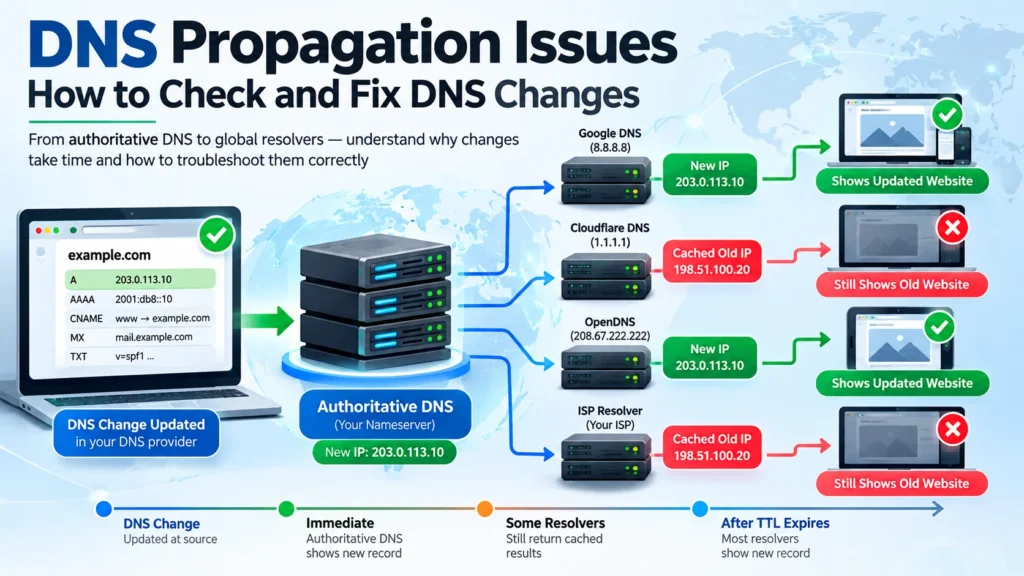
You change a DNS record, move a website to a new server, update your nameservers, or create a new subdomain. Your DNS dashboard shows the new value, but the website still opens from the old server. It works on mobile data but not on Wi-Fi. One DNS lookup returns the new IP address while another still returns the old one.
The usual explanation is, “DNS is still propagating.”
Sometimes that is correct. Sometimes waiting will fix nothing.
The fastest way to troubleshoot DNS propagation issues is to identify where the old or incorrect DNS answer is coming from.
Quick answer: Check the authoritative DNS first. If the authoritative nameservers return the correct new value but some recursive resolvers still return the old value, caching is a likely cause. If the authoritative DNS itself is wrong, waiting for propagation will not fix the configuration.
This guide shows you how to distinguish genuine DNS caching from configuration errors, nameserver problems, old IP addresses, negative caching, CDN issues, browser caching, and migration mistakes.
What Is DNS Propagation?
DNS propagation is the informal term commonly used for the transition period after a DNS change when different DNS resolvers may temporarily return different answers.
DNS does not work like a single central database that instantly pushes every change to every device worldwide.
A recursive DNS resolver may already have an earlier answer stored in its cache. If that cached response is still valid, the resolver can continue returning it without immediately requesting a fresh answer from the authoritative nameserver.
If you are new to domain infrastructure, understanding how domains and DNS work first can make DNS propagation, nameservers, and record changes easier to understand.
That is why, after a DNS change:
- One user may reach the new website while another reaches the old server.
- One network may return the new IP while another returns the previous one.
- A newly created hostname may work through one resolver but fail through another.
- A website may appear updated on mobile data but unchanged on Wi-Fi.
The useful question is therefore not simply, “Has DNS propagated?”
It is:
“Which layer is still returning the old answer?”
How to Troubleshoot DNS Propagation Issues
Use this diagnostic order:
- Confirm the domain’s authoritative nameservers.
- Query the authoritative DNS directly.
- Verify that the relevant authoritative nameservers return the expected record.
- Compare that result with recursive DNS resolvers.
- Check the previous record’s TTL and possible cached responses.
- Investigate negative caching if the hostname or record is new.
- Verify the relevant A, AAAA, CNAME, MX, TXT, NS, or other record.
- Rule out local DNS, router, VPN, CDN, proxy, browser, and web-server problems.
- Decide whether you should wait or fix.
- Retest the same layers after any correction.
This order matters. Repeatedly editing records or clearing random caches before locating the problem can make troubleshooting harder.
How DNS Resolution Works
A simplified DNS lookup can be visualized as:
User → Device or Network → Recursive Resolver → DNS Hierarchy → Authoritative Nameserver → DNS Record
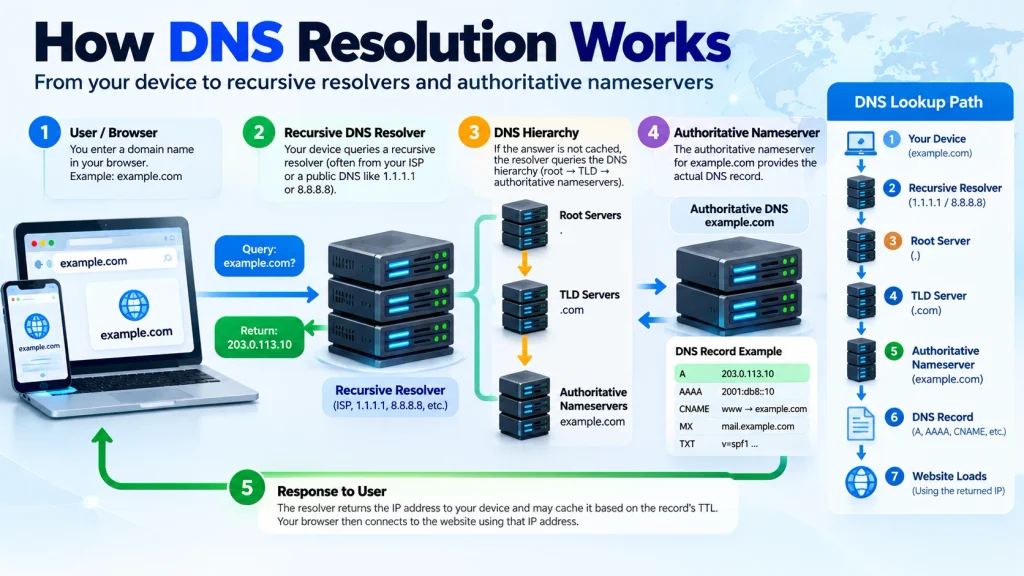
An authoritative nameserver provides authoritative information for its DNS zone.
A recursive resolver, by contrast, obtains DNS answers on behalf of clients and may cache those answers.
This distinction is central to diagnosing propagation problems.
Suppose the authoritative nameserver returns:
example.com → 203.0.113.20
but one recursive resolver still returns:
example.com → 192.0.2.10
The source and resolver disagree. That gives you a much more useful clue than simply saying “DNS is slow.”
But if the authoritative server itself still returns192.0.2.10, the problem exists at or before the authoritative DNS layer.
In that situation, waiting for recursive caches is not the first problem to solve.
What Is DNS TTL?
TTL stands for Time to Live.
A DNS record’s TTL tells caching resolvers how long an answer may generally remain cached before it should be refreshed.
Imagine that a resolver obtains:
example.com → 192.0.2.10
before your migration.
Later, you change the authoritative A record to:
example.com → 203.0.113.20
A resolver that did not already cache the old record may obtain the new address quickly. Another resolver that still has a valid cached response may continue returning the previous address until that cache expires.
This produces an important migration principle:
Lowering a new record’s TTL does not retroactively erase an older answer that has already been cached elsewhere.
For planned migrations, TTL strategy therefore works best before the cutover rather than as an emergency fix afterward.
How Long Does DNS Propagation Take?
There is no universal DNS propagation timer.
You will often see statements such as “DNS propagation takes 24 to 48 hours.” That may be a practical waiting estimate in some situations, but it is not a universal technical rule for every record and every resolver.
What users actually observe depends on factors such as:
- Previous TTL values
- When a resolver cached the earlier record
- Resolver behavior
- Nameserver delegation
- Negative caching
- Local or ISP DNS caching
- DNS provider configuration
- DNSSEC configuration
- The type of record changed
- Whether authoritative nameservers agree
Instead of relying only on a generic waiting period, test the DNS chain.
If the authoritative answer is correct and a recursive resolver still has the previous answer, waiting for that cache to expire can be reasonable.
If the authoritative answer is wrong, waiting is not a substitute for correcting it.
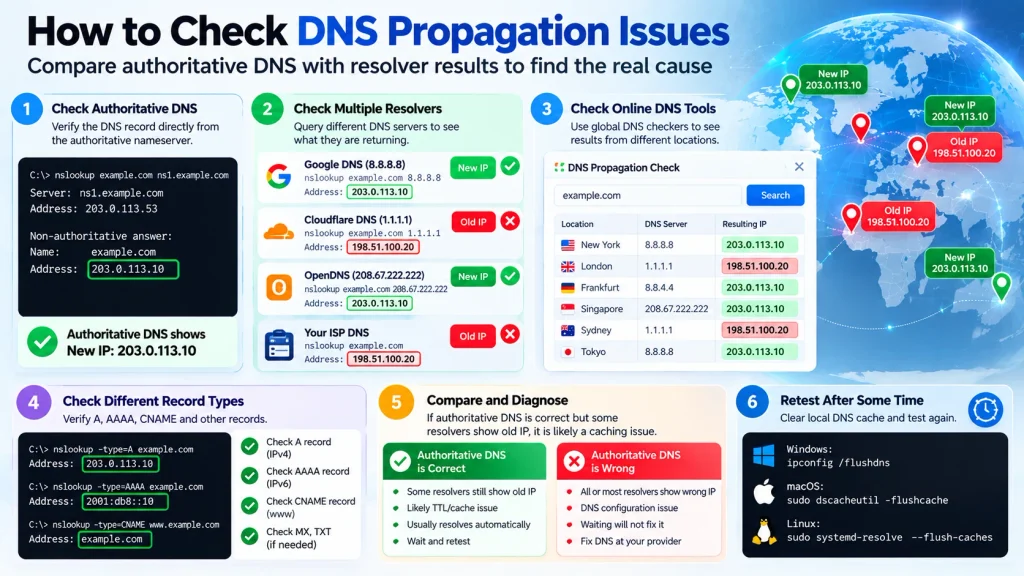
How to Check DNS Propagation Correctly
A global DNS propagation checker can be useful, but it should not be your only diagnostic tool.
Start by checking the authoritative nameserver because it holds the official DNS resource records for its zone. For a formal definition, see ICANN’s authoritative name server reference.
Use a layered approach.
1. Confirm the Authoritative Nameservers
First determine which nameservers are actually authoritative for the domain.
This answers a surprisingly important question:
Are you editing DNS at the provider that currently controls the zone?
A domain owner may have access to several DNS interfaces:
- Domain registrar
- Hosting account
- Previous hosting company
- CDN
- Managed DNS provider
- Website platform
Only the active authoritative configuration matters to public DNS.
If you edit an inactive DNS zone, the dashboard may show exactly what you entered while public DNS remains unchanged.
2. Query the Authoritative DNS
Query the authoritative nameserver for the specific record you changed.
Depending on the problem, inspect:
- A
- AAAA
- CNAME
- MX
- TXT
- NS
- SOA
If the authoritative answer is incorrect, fix that configuration before blaming propagation.
3. Compare Recursive Resolvers
If the authoritative DNS is correct, compare it with responses from recursive resolvers.
If some resolvers return the new value and others return the previous value, caching becomes a stronger explanation.
Do not focus only on the fact that the resolvers disagree.
Ask:
Which resolver answer matches the authoritative source?
4. Check the Local Environment
If public resolvers consistently return the correct value but one device or network behaves differently, investigate locally.
Possible causes include:
- Operating-system DNS cache
- Router or gateway
- ISP resolver
- VPN
- Corporate DNS
- Local hosts file
- Security software
- Proxy
- IPv4 versus IPv6 behavior
At this stage, the evidence no longer points to a worldwide DNS propagation problem.
DNS Changed, but the Website Still Points to the Old IP
This is one of the most common migration problems.
You change the A record, but the domain still reaches the previous server.
Use the following sequence.
Does authoritative DNS return the old IP?
If yes, correct the authoritative configuration.
Do the authoritative nameservers disagree?
If one authoritative nameserver returns the new IP while another returns the old one, investigate the zone configuration.
A configuration inconsistency should not be dismissed as ordinary propagation.
Do only some recursive resolvers return the old IP?
If authoritative DNS consistently returns the new address but selected recursive resolvers return the old one, cached answers are a plausible cause.
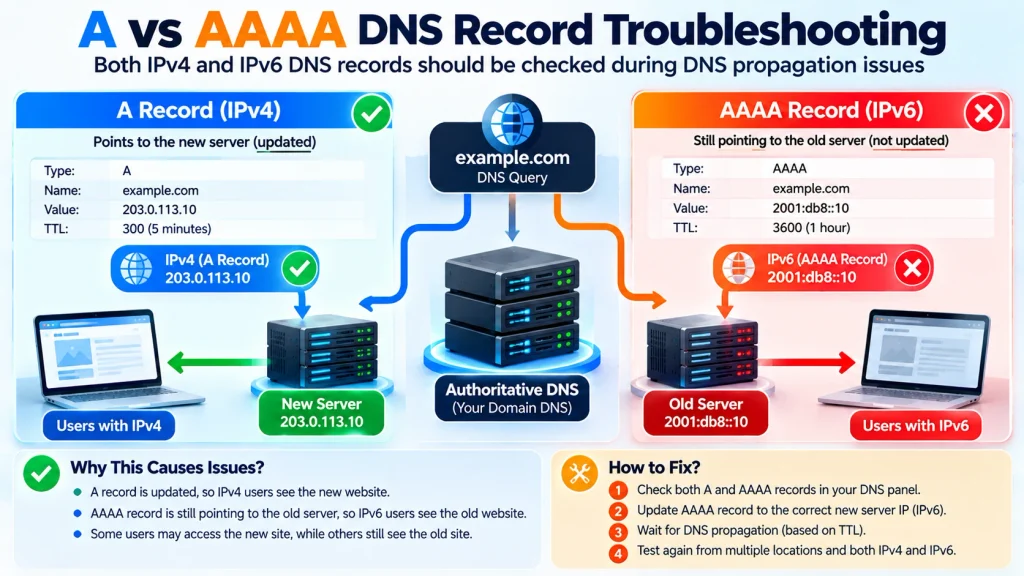
Is the AAAA record still pointing elsewhere?
An A record controls IPv4.
An AAAA record controls IPv6.
Changing only the A record can leave IPv6-capable clients reaching a different destination.
Does DNS already return the correct destination?
If yes, stop treating DNS as the only suspect.
Investigate:
- CDN cache
- Reverse proxy
- Application cache
- Server-side cache
- Redirects
- Virtual-host configuration
- Load balancer
- Origin configuration
A browser displaying an old website does not automatically mean DNS is still wrong.
If DNS is returning the correct destination but crawling, indexation, redirects, canonicals, or site architecture still have technical problems, a technical SEO audit can help identify issues beyond DNS propagation.
If a public resolver is still returning stale DNS data after a server or nameserver change, resolver caching may be involved. Google’s Public DNS troubleshooting documentation explains how old, unexpired cached answers can remain after DNS server or registrar changes.
DNS Propagation vs Browser Cache vs CDN Cache
DNS, browsers, CDNs, and servers can all create symptoms that look similar to an end user.
| Symptom | First area to investigate | Recommended first check |
|---|---|---|
| DNS lookup returns old IP | DNS/resolver | Authoritative DNS |
| Authoritative DNS is new but one resolver is old | Resolver caching | Cached answer and TTL |
| DNS resolves correctly but old page appears | Web/CDN layer | CDN and origin response |
| Only one device has the problem | Local environment | Device resolver/configuration |
| Mobile data works but Wi-Fi does not | Network/resolver difference | Compare DNS responses |
| New hostname returns NXDOMAIN on some resolvers | Negative caching/configuration | Authoritative DNS and SOA |
| Authoritative nameservers disagree | DNS configuration | Correct zone consistency |
| IPv4 works but some users still fail | IPv6/DNS | Check AAAA |
This table is useful because it changes troubleshooting from guessing into elimination.
Why Does DNS Work on Mobile Data but Not Wi-Fi?
Mobile data and Wi-Fi can use different recursive DNS resolvers.
One resolver may have refreshed its answer while another still holds an older cached response.
But resolver caching is not the only possibility.
Compare the actual DNS results first.
If both networks resolve to the same correct destination but only one fails, investigate network configuration, IPv6, VPNs, proxies, filtering, CDN behavior, or the server itself.
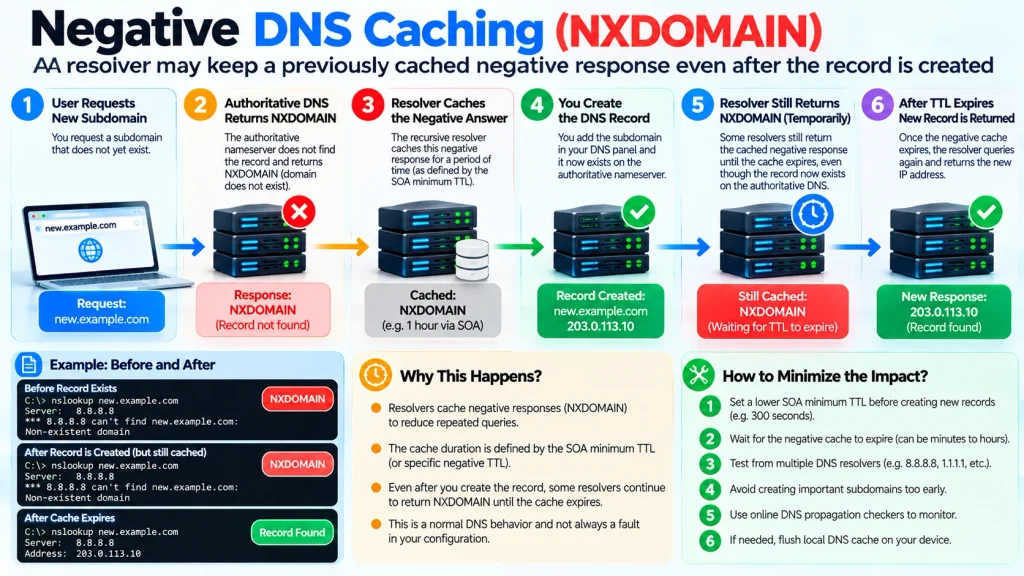
What Is Negative DNS Caching?
DNS caching does not only store successful answers.
Resolvers can also cache negative answers.
Imagine that someone requests:
new.example.com
before that hostname exists.
The resolver receives an answer indicating that the requested name does not exist. That negative result can be cached.
You then create the new DNS record.
The authoritative DNS may now contain the hostname, while a resolver that previously cached the negative response may temporarily continue behaving as though the name does not exist.
This is known as negative caching.
It explains an otherwise confusing scenario:
A new subdomain exists in authoritative DNS and works through some resolvers, but another resolver still returns NXDOMAIN.
Changing the new record’s TTL does not automatically remove a negative response that a resolver already cached.
When diagnosing this problem, inspect the authoritative record, resolver behavior, and relevant SOA information instead of repeatedly deleting and recreating the hostname.
Negative DNS caching is standardized behavior rather than simply a browser error. The technical rules for caching NXDOMAIN and other negative DNS responses are defined in RFC 2308: Negative Caching of DNS Queries.
Nameserver Changes vs DNS Record Changes
Changing a DNS record inside the existing authoritative zone is not the same operation as changing the domain’s delegated nameservers.
An A-record change modifies data within a DNS zone.
A nameserver change can alter which DNS infrastructure is authoritative for the domain.
When changing nameservers, verify:
- The registrar contains the intended nameservers.
- Delegation points to the expected authoritative servers.
- The new DNS provider contains the complete required zone.
- The authoritative nameservers return consistent records.
- Website, email, verification, and subdomain records were preserved.
- DNSSEC configuration remains valid where DNSSEC is enabled.
A migration can fail even when a record inside the new DNS dashboard looks correct if the domain is still delegated elsewhere.
Which DNS Records Should You Check?
Different services depend on different record types.
A Record
Maps a hostname to an IPv4 address.
Check it when moving a website to another IPv4 server.
AAAA Record
Maps a hostname to an IPv6 address.
An outdated AAAA record can cause some clients to reach a different destination even when the A record is correct.
CNAME Record
Aliases one hostname to another.
When troubleshooting a CNAME, inspect both the alias and the hostname it ultimately depends on.
MX Record
Controls mail routing.
Be especially careful during DNS migrations because missing or incorrect MX records can affect email delivery.
TXT Record
TXT records are commonly used for domain verification and email-related configurations such as SPF, DKIM, and DMARC.
A functioning website does not prove that required TXT records survived a DNS migration.
NS Record
NS records are associated with nameserver relationships.
Delegation and authoritative DNS problems should be distinguished from ordinary resolver caching.
SOA Record
The Start of Authority record contains important information about a DNS zone and is relevant when investigating behaviors such as negative caching.
DNS Propagation After a Website Migration
DNS planning should begin before the migration.
DNS is only one part of a successful migration. You should also review technical SEO during website migrations, including redirects, canonicals, internal links, sitemaps, and indexation checks.
Before the Migration
Confirm that:
- The destination server is ready.
- The website works at the new destination.
- HTTPS is prepared.
- Existing DNS records have been documented.
- Email-related records are preserved.
- A and AAAA records have been reviewed.
- Important subdomains are documented.
- CDN and proxy settings are understood.
- Existing TTLs have been reviewed.
- Backups are available.
- The old environment can remain available during transition where practical.
If you intend to reduce TTL for a planned migration, do it early enough for previously cached higher-TTL answers to expire before the cutover.
Reducing TTL immediately before changing the server may provide much less benefit.
During the Migration
Change only what needs to change.
Avoid modifying multiple unrelated DNS settings simultaneously unless required.
Every additional variable makes diagnosis harder if something fails.
After the Migration
Verify:
- Delegation and authoritative nameservers.
- Authoritative DNS records.
- Recursive resolver responses.
- A and AAAA records.
- Website response.
- HTTPS.
- CDN or proxy routing.
- Email-related DNS records.
- Important subdomains.
Where practical, keep the previous server functional during the transition so users reaching an older cached destination do not immediately encounter a dead service.
DNS Troubleshooting: Should You Wait or Fix Something?
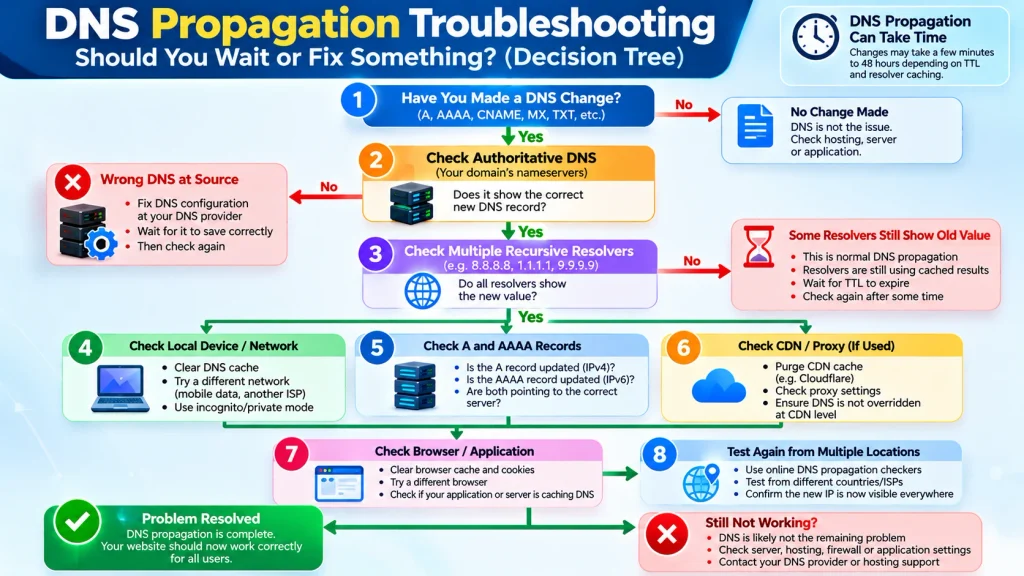
This decision framework is the core of effective DNS troubleshooting.
| What you find | What it suggests | What to do |
|---|---|---|
| Authoritative DNS returns the wrong value | Source configuration problem | Fix the DNS record |
| Authoritative nameservers disagree | Zone/configuration inconsistency | Correct the authoritative setup |
| Domain is delegated to unexpected nameservers | Delegation problem | Correct nameservers or edit the active DNS provider |
| Authoritative DNS is correct but some resolvers are stale | Resolver caching is plausible | Wait for relevant caches and retest |
| New hostname returns NXDOMAIN only through some resolvers | Negative caching is possible | Verify authoritative record and investigate negative cache |
| Public DNS returns correct IP but old website appears | Problem may be above DNS | Check CDN, proxy, cache, redirects, and server |
| One network behaves differently | Local/network resolver issue possible | Compare resolver and client configuration |
| A is correct but AAAA points elsewhere | IPv6 DNS problem | Correct the intended IPv6 configuration |
| DNS is correct but HTTPS fails | Likely web/TLS issue | Investigate TLS/server configuration |
The principle is simple:
Fix the earliest incorrect layer in the chain.
Common DNS Propagation Mistakes
Editing DNS at the Wrong Provider
Always establish which nameservers are authoritative before changing records.
Lowering TTL After the Migration Starts
A newly lowered TTL does not retroactively shorten the lifetime of old answers that were already cached.
Forgetting IPv6
Changing an A record while leaving an outdated AAAA record can produce inconsistent behavior.
Assuming an Old Web Page Proves DNS Is Wrong
The browser, CDN, reverse proxy, application, or web server may be serving stale content even when DNS is correct.
Repeatedly Changing Records
Changing the expected answer over and over makes troubleshooting harder.
Test first. Change second.
Testing From Only One Device
One device provides one observation.
Compare the authoritative source, recursive resolvers, and affected client.
Treating a Global DNS Checker as the Authority
A DNS checker is useful for comparing resolver observations.
It does not replace verification against authoritative DNS.
Shutting Down the Old Server Immediately
Some clients may temporarily continue reaching previous infrastructure during a planned transition.
Keeping the old destination available for an appropriate transition period can reduce disruption.
Can You Speed Up DNS Propagation?
You cannot reliably force every independent recursive resolver to discard an existing valid cached answer immediately.
For stale results specifically coming from Google Public DNS, Google provides a DNS cache flush tool. This affects Google’s resolver cache; it does not instantly clear every DNS resolver worldwide.
You can make planned changes smoother.
A practical migration sequence is:
- Review existing DNS records and TTLs.
- Reduce appropriate TTLs in advance where justified.
- Allow previously cached higher-TTL answers time to expire.
- Prepare and test the destination.
- Perform the DNS cutover.
- Verify authoritative DNS.
- Compare recursive resolvers.
- Monitor the old and new environments.
- Increase TTLs again later if appropriate for your DNS strategy.
Good preparation is more reliable than trying to force caches to update after a migration has already begun.
A Better DNS Troubleshooting Framework
For every DNS problem, use the same framework.
Check
What exactly changed?
Was it an A, AAAA, CNAME, MX, TXT, NS record, nameserver delegation, or an entirely new hostname?
Owner
Which system controls the change?
Registrar, authoritative DNS provider, hosting provider, CDN, email provider, or another service?
Test
Check delegation and authoritative DNS first. Then compare recursive resolvers and finally the affected client or application.
Failure
Identify the earliest place where the actual result differs from the expected result.
Severity
Incorrect authoritative DNS affecting new lookups is different from a stale cache on one laptop.
Prioritize accordingly.
Fix
Correct the earliest incorrect layer rather than changing unrelated systems.
Retest
Repeat the original test after correcting.
A browser refresh alone is not a complete DNS retest.
DNS Propagation Checklist
Before concluding that you simply need to wait, verify:
- The domain uses the intended authoritative nameservers.
- DNS records were edited at the active provider.
- Authoritative nameservers return the intended values.
- Authoritative servers agree with one another.
- The A record contains the intended IPv4 address.
- The AAAA record is correct where IPv6 is used.
- CNAME targets are valid.
- Required MX records remain present.
- Important TXT records remain present.
- Relevant TTLs are understood.
- Multiple recursive resolvers have been compared.
- New hostnames have been considered for negative caching.
- DNSSEC has been reviewed where applicable.
- Local DNS caching has been separated from public DNS.
- CDN and proxy configuration has been checked.
- Browser caching has been separated from DNS resolution.
- The destination server serves the intended website.
- HTTPS and redirects work as expected.
- Previous infrastructure has not been removed prematurely.
DNS should also be included in your broader website maintenance checklist, especially after hosting changes, migrations, redirects, or infrastructure updates.
Frequently Asked Questions
What is DNS propagation?
DNS propagation is the transition period commonly observed after a DNS change when different resolvers or caches may temporarily return different DNS answers.
How long does DNS propagation take?
There is no single guaranteed duration. Previous TTL values, resolver caching, nameserver delegation, negative caching, and configuration determine what users observe.
How can I check if DNS has propagated?
Verify the authoritative DNS first, then compare the result with multiple recursive resolvers. If the authoritative source returns the new value while a resolver returns the old one, caching is a likely explanation.
Why is my DNS not updating?
Possible causes include cached records, incorrect authoritative DNS, editing records at the wrong provider, nameserver delegation problems, inconsistent authoritative servers, negative caching, DNSSEC issues, IPv6 configuration, or local resolver caching.
Why is my old website still showing after a DNS change?
The old IP may still be cached, but DNS is not the only possible cause. Check the authoritative answer, recursive resolvers, AAAA record, CDN, proxy, redirects, and web-server configuration.
Why does my website work on mobile data but not Wi-Fi?
The networks may use different recursive resolvers. Compare their DNS results. If both return the same correct destination, investigate the network or application layer instead.
Does clearing my DNS cache speed up global propagation?
No. Clearing a local cache affects that local environment. It does not force independent recursive resolvers elsewhere to discard their cached responses.
Does lowering TTL make DNS update faster?
Lower TTLs can help with planned changes when applied sufficiently in advance. Lowering TTL after an older answer has already been cached does not retroactively alter that cached response.
What is negative DNS caching?
Negative caching occurs when a resolver temporarily caches an answer indicating that a requested DNS name or record does not exist. This can make a newly created hostname appear unavailable through that resolver even after the authoritative DNS has been updated.
Should I wait or change my DNS again?
Check the authoritative DNS first. If it is wrong, fix it. If it is correct and only selected recursive resolvers return an older cached answer, waiting for relevant caches to expire may be appropriate.
Final Takeaway
DNS propagation becomes easier to troubleshoot when you stop asking only, “How long should I wait?”
Ask instead:
“Where does the first incorrect answer appear?”
Start with delegation and authoritative DNS. Then compare recursive resolvers. Check TTL behavior and negative caching where relevant. Finally, separate DNS from local networks, IPv6, CDNs, proxies, browsers, redirects, and web servers.
The decision is then much clearer:
Authoritative DNS wrong → fix it.
Authoritative DNS correct but a resolver is stale → caching may require time.
DNS correct but the old website still appears → investigate beyond DNS.
That is a more reliable approach than repeatedly changing records or waiting blindly for a supposed global propagation timer.