
Table of Contents
Is your WordPress contact form not sending email even though visitors see a successful submission message? The problem could involve incorrect form notifications, unreliable email transport, sender authentication, hosting restrictions, or messages being filtered by the recipient’s email provider.
For businesses, missing contact form notifications can mean unanswered quotation requests, appointment bookings, support messages, and potential customer enquiries.
The solution is not always to install another plugin.
You first need to identify which part of the submission and email delivery process has failed.
This guide explains nine practical fixes for WordPress email notification problems, including Contact Form 7, Fluent Forms, SMTP, Gmail, SPF, DKIM, and DMARC.
It also provides a diagnostic workflow that helps you investigate the issue without unnecessarily changing your website.
Quick Answer
If your WordPress contact form submits successfully but no email arrives, start by checking the form’s notification settings and recipient address. Next, verify the sender configuration, test your SMTP or email API connection, review email authentication, and check the recipient’s spam or quarantine folders.
If an SMTP test works but form notifications still fail, investigate the form’s notification settings and conditional rules before changing the sending service.
A successful form message does not prove that the email reached its destination.
Why Is My WordPress Contact Form Not Sending Email?
A WordPress contact form normally performs two distinct tasks.
First, it processes information submitted by a visitor.
Second, it generates and attempts to send the required email notification.
A problem can occur even when the visitor sees a successful submission message.
Why Does the Contact Form Say Sent but No Email Arrives?
The success message does not necessarily confirm final email delivery.
WordPress provides a function called wp_mail() that plugins and themes can use to generate outgoing messages.
According to the official WordPress documentation, a successful result means the sending method processed the request without reporting an error. It does not prove that the intended recipient received the email.
For further details, see the WordPress wp_mail() reference.
Common Causes
Contact form notifications may fail because of:
- Incorrect recipient email addresses.
- Disabled or misconfigured notifications.
- Invalid dynamic form fields.
- Unauthorized sender addresses.
- Incorrect SMTP settings.
- Expired email service authorization.
- Missing or failing authentication.
- Hosting restrictions.
- Recipient filtering or quarantine.
- Plugin conflicts or conditional notification rules.
These problems require different solutions.
The first step is diagnosis, not random configuration changes.
Diagnose the Five Stages of Contact Form Email Delivery
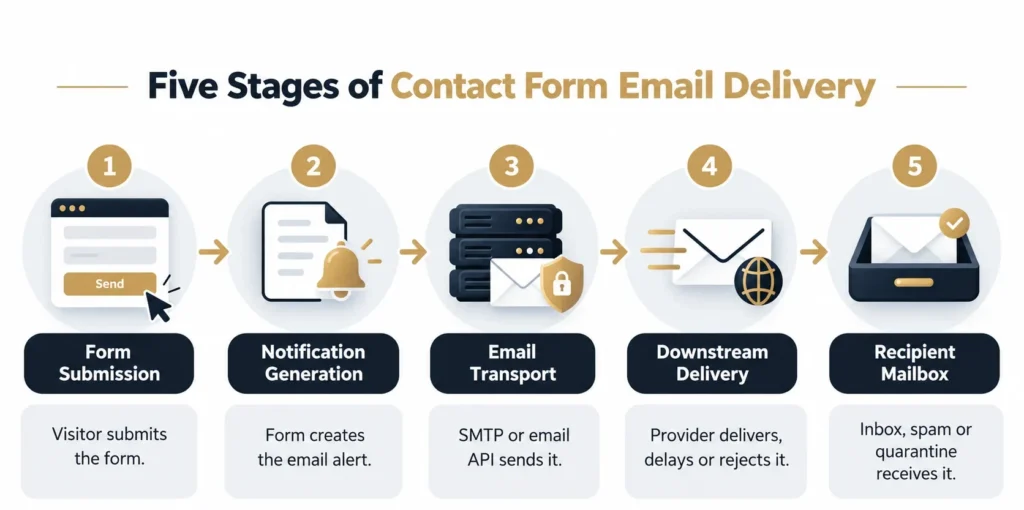
Before making changes, send a controlled test submission using a unique subject or message reference.
For example:
Contact Form Delivery Test 001
Use an email account you control, and avoid submitting confidential information.
Then examine the following five stages.
Stage 1. Form Submission
Did the website process the visitor’s submission?
Look for an error or success message and check any available submission record.
Not all form plugins save entries automatically.
Stage 2. Notification Generation
Did the form generate the appropriate administrator or visitor notification?
Check whether notifications are enabled and whether conditional rules were satisfied.
Stage 3. Email Transport
Did the configured SMTP server or email API accept the sending request?
If the connection failed, the problem may involve authorization, server settings, or hosting restrictions.
Stage 4. Downstream Delivery
Did the sending provider report that the message was delivered, rejected, delayed, or bounced?
The available information depends on the provider’s logging and delivery reporting features.
Stage 5. Recipient Mailbox
If the receiving system accepted the email, check whether it was placed in Spam, quarantine, another folder, or affected by mailbox rules.
WordPress Contact Form Diagnostic Table
| Observed symptom | Likely problem area | First check |
|---|---|---|
| Form displays an error | Submission processing | Check form errors and validation |
| Form submits but no notification is generated | Form configuration | Check notification settings |
| SMTP test fails | Email transport | Review connection and authorization |
| SMTP test passes but form notification fails | Form-specific logic | Review notification triggers |
| Email reaches Spam | Deliverability | Review authentication and filtering |
| Only Gmail delivery fails | Recipient-specific requirements | Check provider errors |
| Emails fail after an update | Changed configuration or compatibility | Review recent changes |
| Emails arrive intermittently | Sending limits or delivery problems | Review timestamps and logs |
This table helps narrow the investigation. It does not establish a diagnosis without supporting evidence.
Fix 1. Check WordPress Form Notification Settings
Begin with the form plugin.
Even when WordPress email sending works, an individual form may have an incorrect or disabled notification.
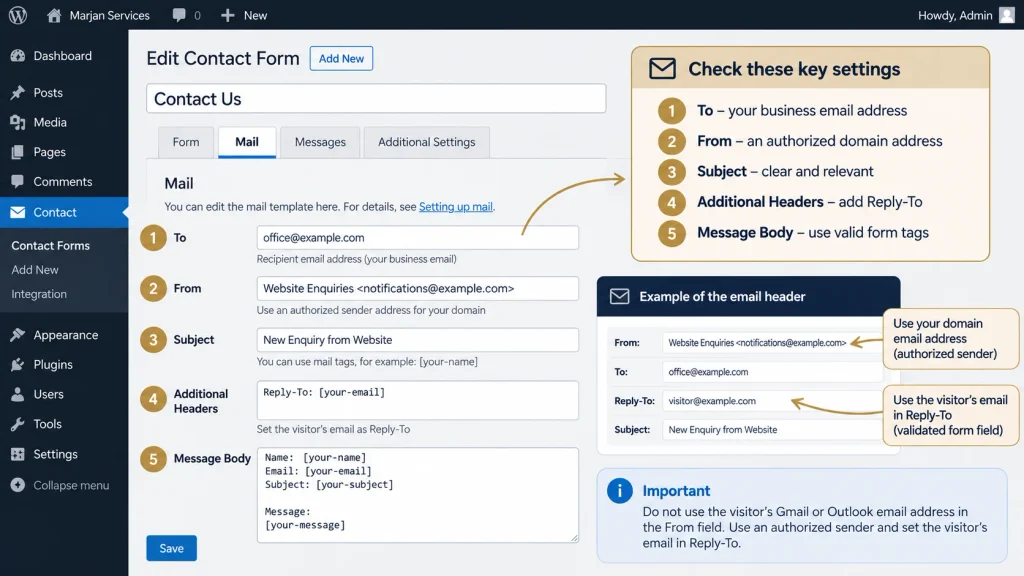
Contact Form 7 Notification Settings
To review Contact Form 7:
- Open your WordPress Dashboard.
- Navigate to Contact.
- Select the affected form.
- Open the Mail tab.
- Check the To email address.
- Verify the From address.
- Review the Subject and Message fields.
- Confirm that dynamic mail tags match existing form fields.
- Save changes and submit a fresh test.
For example, if the notification references [your-email], the form must contain a corresponding email field.
Check the official Contact Form 7 mail configuration documentation for the relevant settings.
Fluent Forms Notification Settings
If you use Fluent Forms:
- Open Fluent Forms in the WordPress Dashboard.
- Select the relevant form.
- Open Settings & Integrations.
- Find Email Notifications.
- Confirm that the intended notification is enabled.
- Check recipients and conditional rules.
- Save and submit a test entry.
Check saved entries and notification diagnostics, where available, before changing your SMTP configuration.
Why Administrator and Customer Notifications Must Be Tested Separately
A form may send a message to the website administrator and a separate confirmation to the visitor.
These notifications can use different recipients and conditions.
One may work while the other fails.
Test each required notification individually.
Fix 2. Correct the From and Reply-To Addresses
Incorrect sender settings can cause authentication problems.
A common mistake is using the visitor’s Gmail or Outlook address as the notification’s From address.
Your WordPress website may not be authorized to send messages as that domain.
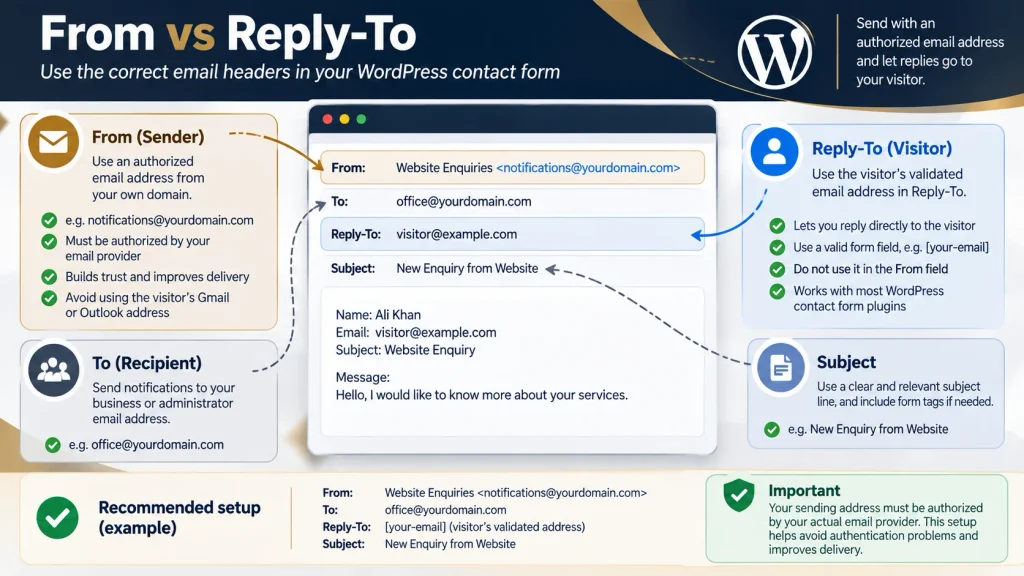
WordPress From vs Reply-To Configuration
Recommended Email Header Configuration
For a fictional website using example.com an appropriate configuration might be:
To: office@example.com
From: Website Enquiries <notifications@example.com>
Reply-To: The visitor’s validated email address.
The sending identity must be authorized by the actual email provider.
For Contact Form 7, an illustrative Additional Headers entry is:
Reply-To: [your-email]
This assumes [your-email] is a properly configured email field.
Why Is Reply-To Better for Visitor Addresses?
The From header identifies the sender.
The Reply-To header identifies the address to which replies should be directed.
Using an authenticated business sender while placing a validated visitor address in Reply-To helps avoid misrepresenting the message as originating from the visitor’s email provider.
Make sure user-supplied values are validated and handled through the form plugin’s supported mail-tag functionality.
Fix 3. Configure SMTP or an Email API
If form notifications are generated correctly but outgoing email fails, investigate the sending method.
WordPress may use its hosting environment’s mail configuration or a connected email service.
A dedicated authenticated SMTP or email API integration can offer more controlled sending and better diagnostic information.
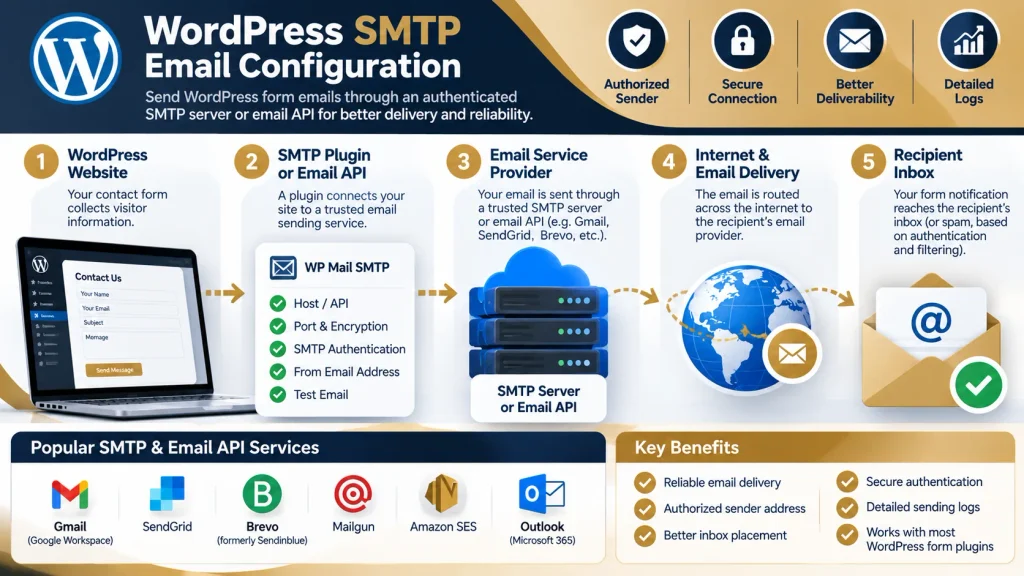
What Is SMTP?
SMTP stands for Simple Mail Transfer Protocol.
It is commonly used to submit outgoing email messages to a mail server.
An email API provides another supported way to send messages through a specialist provider.
How to Configure WordPress Email Sending
- Identify the existing sending configuration.
- Choose a reputable mail service that supports your requirements.
- Verify the sending domain or identity.
- Install one compatible WordPress mail integration.
- Connect the provider using its supported authorization method.
- Configure the approved From address.
- Send a test email.
- Submit a new contact form entry.
WP Mail SMTP and FluentSMTP are examples of plugins that can connect WordPress to supported sending services.
Avoid configuring several competing plugins to control the same outgoing email process.
SMTP Versus Email API
SMTP and email APIs can both be appropriate.
The better option depends on service compatibility, hosting restrictions, provider capabilities, security requirements, and the availability of useful delivery logs.
Where available, prefer secure, provider-supported authentication methods.
Never expose passwords, authorization tokens, or API keys in public screenshots or support requests.
Does SMTP Guarantee Delivery?
No.
SMTP can address transport-related problems, but it does not automatically fix disabled notifications, incorrect recipient settings, or recipient-side filtering.
Fix 4. Check SPF, DKIM, and DMARC
A message may leave WordPress but fail authentication or recipient-side checks.
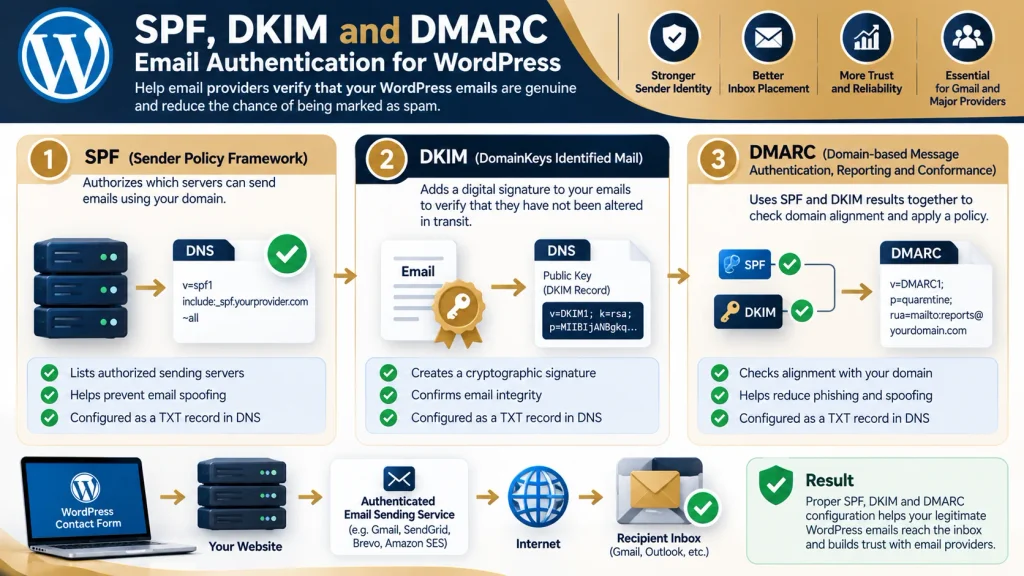
SPF, DKIM, and DMARC help receiving mail services evaluate whether a message is legitimately associated with its claimed sender.
What Is SPF?
Sender Policy Framework allows a domain to identify which servers are authorized to send email using that domain in the SMTP envelope identity.
Receiving systems can use SPF during authentication checks.
What Is DKIM?
DomainKeys Identified Mail uses cryptographic signatures that receiving services can verify against public DNS records.
A valid DKIM result provides evidence about the signing domain and the integrity of signed message content.
What Is DMARC?
Domain-based Message Authentication, Reporting and Conformance uses SPF and DKIM results together with alignment rules related to the visible From domain.
DMARC also supports domain policies and reporting.
How to Diagnose Authentication Problems
- Identify the actual email provider.
- Review its domain authentication instructions.
- Check existing DNS records.
- Verify the required SPF authorization.
- Confirm DKIM signing and public key configuration.
- Review DMARC alignment and policy.
- Send a fresh test email.
- Examine the authentication results and provider diagnostics.
Do not paste generic SPF, DKIM, or DMARC records into your DNS settings.
Each provider may have different requirements.
A domain should not have multiple independent SPF records at the same DNS name.
What Does Gmail Require?
Google requires authentication for messages sent to personal Gmail accounts.
Additional requirements apply to high-volume senders.
Review Google’s Email Sender Guidelines for current technical requirements.
Correct authentication can help legitimate messages pass sender checks, but it does not guarantee inbox placement.
Fix 5. Test the Email Transport and Form Separately
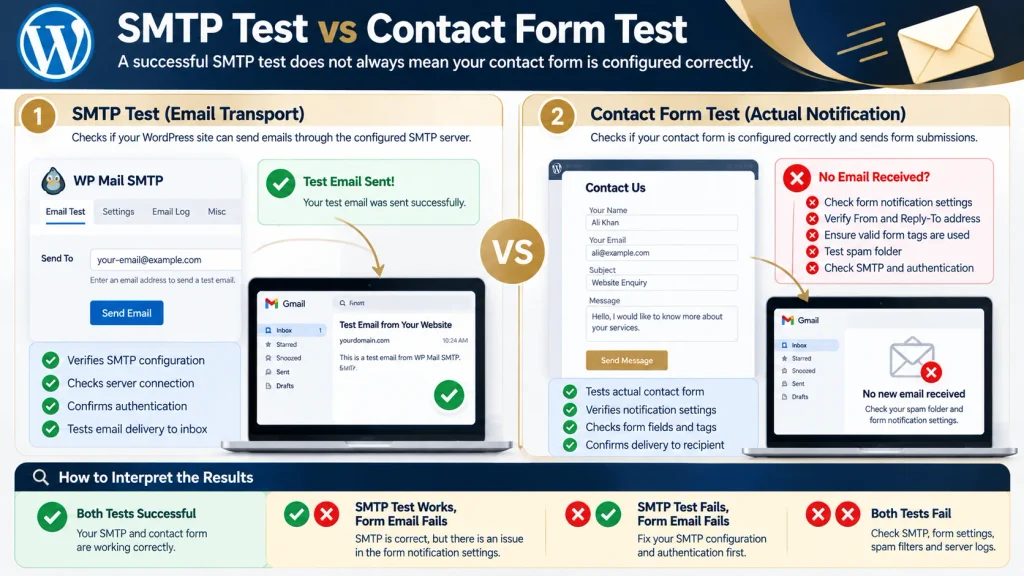
A successful SMTP test is useful, but it does not prove that your contact form’s own notification workflow is working.
Perform separate tests.
Test A. Email Transport
Use your SMTP or email API plugin’s testing function.
Send a controlled message to an accessible mailbox.
Check the provider’s response and whether the email arrives.
Test B. Contact Form Submission
Open the actual public contact page.
Submit a message containing a unique reference.
Verify the form response, saved entry if supported, and relevant notification settings.
Test C. Final Delivery
Search the receiving mailbox for the reference.
Review available provider logs, Spam, and any relevant filtering rules.
Interpreting the Results
| Transport test | Form notification | Recommended next step |
|---|---|---|
| Fails | Fails | Diagnose the sending service |
| Passes | Fails | Check form notification settings |
| Passes | Arrives | Confirm message content and reply handling |
| Passes | Missing or filtered | Investigate provider events and mailbox filtering |
Does a WordPress Email Log Confirm Delivery?
Not necessarily.
WordPress logs, SMTP provider events, and recipient system records may document different parts of the delivery process.
A message marked sent may have been accepted for processing without reaching the recipient’s inbox.
Review what the specific logging tool actually records.
Avoid storing sensitive customer message content unnecessarily.
Fix 6. Check Gmail and Spam Filtering
If sending appears successful but the intended recipient cannot find the email, investigate mailbox handling.
Gmail Troubleshooting Checklist
- Search for the unique test reference.
- Check Spam, Trash, and All Mail.
- Review filters and forwarding rules.
- Check blocked sender settings.
- Examine authentication results for any received message.
- Review relevant provider rejection or bounce records.
- Compare the result with a different mailbox you control.
If the business uses Google Workspace, the administrator may have additional email log and quarantine tools available.
Why Does Gmail Reject Some WordPress Emails?
Possible causes include failed authentication, sender-domain mismatch, reputation problems, or other sender-policy violations.
Some Gmail rejection responses include diagnostic error codes such as 5.7.26.
Use the full response and Google’s documentation to identify the cause instead of assuming that every rejection has the same solution.
Fix 7. Investigate Hosting and SMTP Errors
WordPress hosting environments can affect outgoing email.
Some providers restrict specific outbound connections or impose sending limits.
Others may require particular configurations or supported email services.
Common Hosting-Related Problems
- SMTP connection timeout.
- Incorrect server address.
- Incorrect port or encryption configuration.
- Invalid email service authorization.
- Outbound connection restrictions.
- Provider sending limits.
- Expired integration credentials.
What to Ask Your Hosting Provider
Provide the error code, approximate timestamp, and name of the sending service.
Ask whether the configured transport method is supported and whether server restrictions apply.
Use the host’s official support channel, and do not disclose credentials or confidential messages unnecessarily.
If SMTP connections are restricted, a supported authenticated email API may be an alternative.
Avoid changing unrelated server settings without a documented reason.
Fix 8. Check Plugin Conflicts and Notification Rules
Contact form notifications may stop after changes to plugins, themes, security controls, or form configuration.
However, a recent update does not prove that the updated plugin caused the problem.
Check Notification Conditions First
Some forms only send emails when specific conditions are satisfied.
For example, an enquiry may be routed to a particular department according to a dropdown selection.
If the field values change, older conditional notification rules may no longer match.
Review those conditions before investigating broader plugin compatibility.
Safe Troubleshooting Procedure
- Record when the issue began.
- Identify recent relevant changes.
- Review plugin and server logs.
- Use a staging website where possible.
- Reproduce the error under controlled conditions.
- Test suspected compatibility problems individually.
- Restore normal configuration.
- Verify the complete form workflow.
Do not disable essential production plugins indiscriminately.
Make an appropriate backup and recovery plan before performing potentially disruptive troubleshooting.
Fix 9. Verify and Monitor Your Contact Forms
After applying the relevant correction, test every business-critical form.
A contact page may work while a quotation form or appointment form still contains an outdated recipient address.
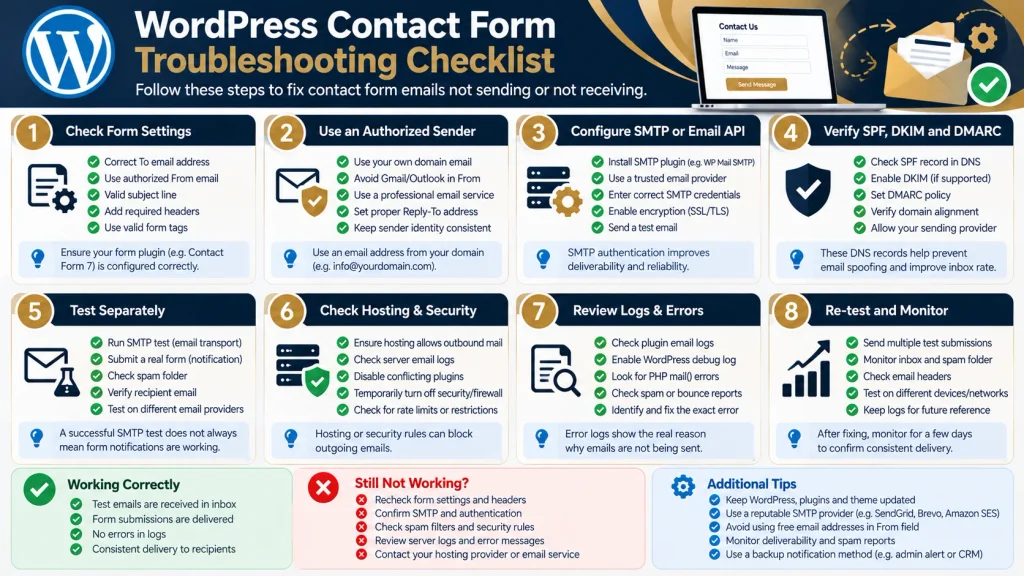
Final Form Verification Checklist
- The form accepts valid submissions.
- The correct notification is enabled.
- Dynamic form fields are mapped correctly.
- The sending service accepts the notification.
- The intended mailbox receives the message.
- Reply-To functions as expected.
- The email content is readable.
- Authentication results are checked where available.
- Errors are documented.
- Future monitoring responsibility is assigned.
For critical business enquiries, consider securely retaining appropriate submission records where your form plugin and privacy requirements allow it.
An email notification should not necessarily be your only record of a customer request.
Contact Form 7 and Fluent Forms Troubleshooting
The technical email delivery process is similar across many WordPress form plugins, but the configuration screens and notification features differ.
Contact Form 7 Not Sending Email
For Contact Form 7, prioritize the Mail tab, valid form tags, sender configuration, recipient address, and submission result.
Contact Form 7 does not provide permanent submission storage by default. If your business requires entry retention, consider a suitable supported storage mechanism with appropriate privacy controls.
See the official Contact Form 7 documentation.
Fluent Forms Email Notification Not Working
For Fluent Forms, review the relevant Email Notifications settings, conditional rules, recipients, saved entries, and available logs.
If submissions are saved but notifications are not triggered, start with the form’s own configuration.
If the sending service reports an error, investigate transport and authentication.
See the Fluent Forms documentation.
Common WordPress Email Errors
| Error or symptom | Possible explanation | First action |
|---|---|---|
| SMTP Authentication Failed | Sending authorization rejected | Check authorized account connection |
| Connection Timed Out | Network or server connection problem | Review transport and hosting logs |
| Invalid Recipient | Incorrect destination address | Verify the recipient field |
| Sender Not Authorized | Unauthorized sending identity | Confirm provider sender permissions |
| SPF Failure | Sending infrastructure not authenticated by SPF | Review SPF records |
| DKIM Failure | Signature missing or invalid | Review DKIM configuration |
| DMARC Failure | Authentication alignment problem | Check visible From domain and authentication |
| Form Submitted, No Notification | Notification not triggered | Review form rules |
| Message Accepted, Not Visible | Filtering or downstream handling | Investigate provider and recipient records |
These are diagnostic possibilities rather than guaranteed interpretations.
Always evaluate the complete provider error message.
Preventing Missed Customer Enquiries
A WordPress contact form requires occasional verification even after its initial setup.
Mail provider changes, DNS updates, plugin changes, hosting restrictions, or account authorization problems can affect email delivery.
Recommended Preventive Practices
Test after relevant changes. Check business-critical forms after email service, hosting, plugin, or DNS configuration changes.
Monitor essential enquiries. Assign someone to review delivery failures and important submissions.
Maintain appropriate records. Where supported, securely retain necessary form entries according to applicable privacy requirements.
Review authentication. Recheck email authentication whenever the sending provider or relevant DNS configuration changes.
Document responsibilities. Keep records of the sending provider, form routing, maintenance responsibilities, and recovery process without exposing private credentials.
For a broader maintenance strategy, read the Website Maintenance Guide.
Frequently Asked Questions
Why does Contact Form 7 say sent but no email arrives?
The form may have processed the submission without the message reaching the inbox. Check Mail settings, sending-service logs, and recipient-side filtering.
Why does my WordPress SMTP test work but contact form email fail?
The sending service may be functional while the form notification is disabled, misconfigured, or blocked by conditional rules.
Does WordPress need SMTP to send contact form emails?
Not always. It depends on the configured sending infrastructure. Authenticated SMTP or an email API can provide an alternative when the default setup is unreliable or unsupported.
Why is my WordPress contact form not sending email to Gmail?
Check SPF, DKIM, DMARC alignment, authorized sender settings, provider errors, and Gmail filtering rules.
Can WordPress contact form emails go to spam?
Yes. Authentication, reputation, filtering, and other delivery factors can affect inbox placement. Examine available message headers and provider diagnostics.
What should I do when Fluent Forms notifications stop working?
Check saved entries, enabled notification settings, recipient mapping, and conditional logic. Then test the configured sending service.
Can I recover form submissions that were not emailed?
Possibly, if the form plugin or another approved system saved the entries. If submissions were never stored, recovery may not be possible.
Should I use the visitor’s Gmail address as the From address?
Generally, no. Use an authorized business sending identity and a validated visitor Reply-To address where supported.
How can I confirm my contact form works?
Complete a real test submission, verify the notification, check its arrival in the intended mailbox, and review relevant delivery evidence.
Final Troubleshooting Checklist
If your WordPress contact form is not sending email, use this order:
- Confirm successful submission processing.
- Verify notification generation.
- Check recipients and sender configuration.
- Test the sending service.
- Investigate email authentication.
- Review delivery failures and mailbox filtering.
- Test the complete process again.
The most important lesson is that successful submission, successful sending, and successful inbox delivery are different events.
Diagnosing them separately reduces unnecessary configuration changes and helps identify the real problem.
Need Professional WordPress Email Troubleshooting?
If your business website continues experiencing missing contact form notifications, contact Marjan Web Studio to discuss the problem.
The investigation may involve notification configuration, WordPress mail transport, sending-domain authentication, hosting settings, or recipient delivery.
Explore Website Maintenance Services or contact Marjan Web Studio with your form plugin name and relevant non-sensitive error information.
Never include passwords, API keys, or confidential customer submissions in an initial support enquiry.
1 Comment