Table of Contents
Google Analytics 4 Guide: This Google Analytics 4 guide helps website owners understand where visitors come from, which pages they visit, how they interact with the website, and whether they complete actions that matter to the business.
For beginners, the challenge is rarely creating an Analytics account. The difficult part is building a measurement setup that collects useful information without duplicate tracking, unnecessary events, or confusing reports.
This Google Analytics 4 guide explains the practical workflow: creating a GA4 property, setting up a web data stream, installing the Google tag, verifying data collection, understanding reports, configuring events and key events, measuring website traffic, and implementing ecommerce measurement when needed.
The goal is not to track everything. It is to collect reliable data that answers useful business questions.
What Is Google Analytics 4? A Beginner’s Google Analytics 4 Guide
Google Analytics 4 is Google’s analytics platform for measuring activity across websites and apps.
GA4 uses an event-based measurement model. Events represent interactions or occurrences that you want to measure, such as a page view, link click, sign-up, lead, or purchase.
A useful way to understand GA4 is through four questions:
- Where did visitors come from?
- Which pages or content did they use?
- What actions did they take?
- Did they complete an action that matters to the business?
A properly configured GA4 property helps connect acquisition and behavior with meaningful outcomes.
How Does Google Analytics 4 Work?
For a typical website, the measurement flow can be simplified as:
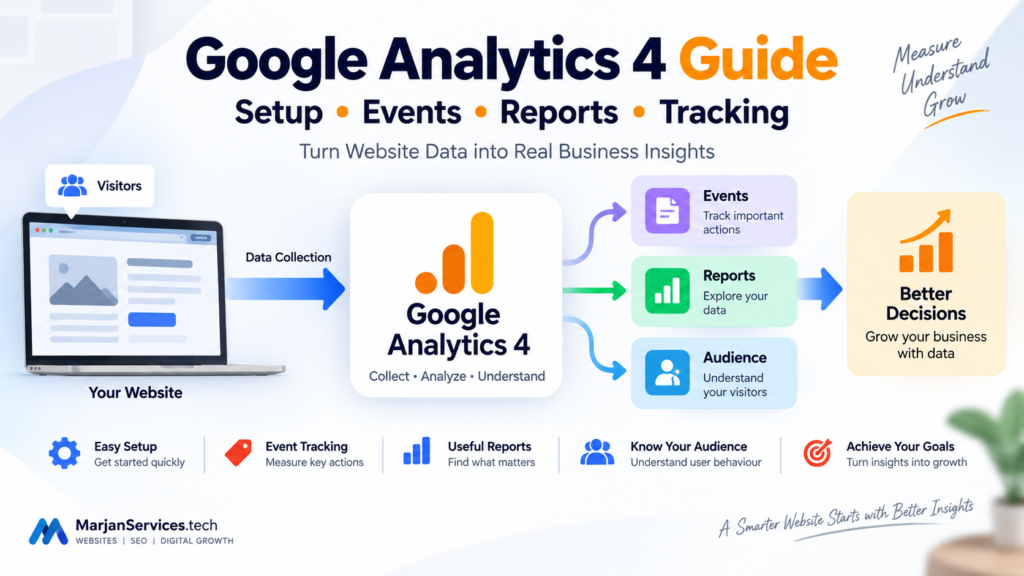
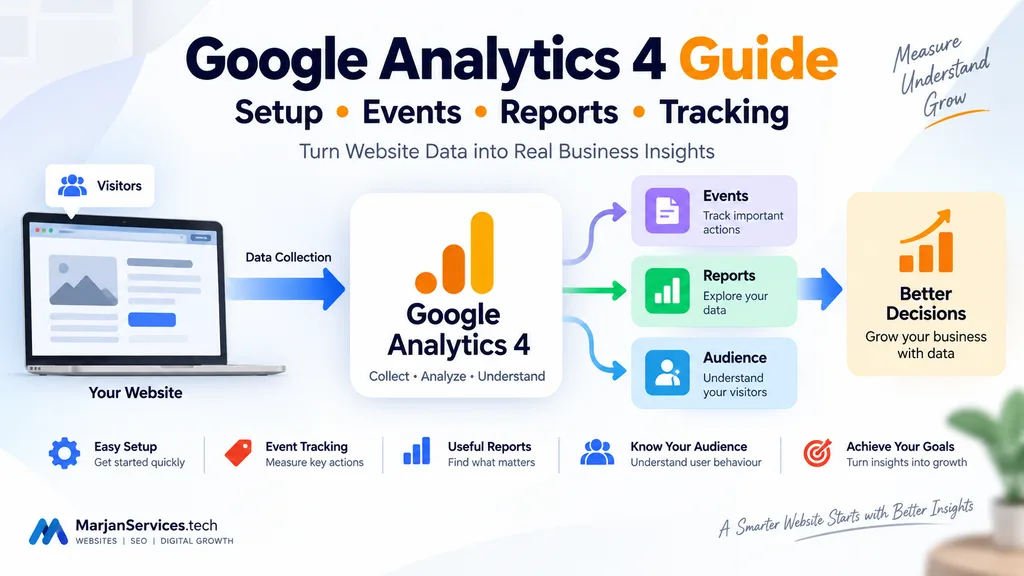
Visitor → Website → Google tag → GA4 data stream → Events → Reports → Decisions
The website sends measurement information through the implemented Google tag or another supported implementation.
GA4 then processes that information into reports that can help you analyze acquisition, engagement, events, and business outcomes.
This is why implementation accuracy matters. If tracking is missing, duplicated, or incorrectly configured, the resulting reports can also be misleading.
How to Set Up Google Analytics 4
A basic GA4 website setup involves four major tasks:
- Create or select the appropriate Analytics account and property.
- Create a web data stream.
- Install the Google tag through a suitable implementation method.
- Verify that the property is receiving data.
1. Create or Access Your Google Analytics Account
Sign in to Google Analytics using the Google account that should have appropriate access to the website’s analytics property.
For a business website, access should be managed deliberately. A business should retain appropriate control of its Analytics property rather than depending entirely on one developer, employee, or outside provider.
2. Create a GA4 Property
The property represents the website or app environment you want to measure.
Use a clear property name and review the requested settings carefully.
Avoid creating unnecessary duplicate properties for the same measurement purpose unless there is a legitimate organizational or technical reason.
3. Create a Web Data Stream
For a website, create a Web data stream and associate it with the correct website.
The stream provides the connection between the website and your GA4 property.
Your implementation will use the appropriate Google tag information associated with this setup.
4. Install the Google Tag
The appropriate installation method depends on the website.
Common approaches include:
- A supported CMS or website-builder integration.
- Google Tag Manager.
- Direct Google tag implementation.
Use one controlled implementation strategy.
Accidentally implementing the same measurement through multiple methods can produce duplicate or otherwise unreliable data.
5. Verify Data Collection
Installation should always be followed by verification.
Visit the website after implementing GA4 and inspect the appropriate Realtime reporting.
Do not assume that the implementation works simply because a tag or plugin has been added.
How to Install Google Analytics 4 on a Website
There is no universal installation method for every website.
The right approach depends on the CMS, website architecture, technical access, and measurement requirements.
CMS or Website Platform Integration
Some content management systems and website platforms provide supported ways to connect a Google tag or Analytics configuration.
For beginners, this may reduce the need to edit website code directly.
Direct Google Tag Installation
A developer can implement the appropriate Google tag directly on the website when required.
This method requires careful implementation and testing.
Website or theme changes should not unintentionally remove the measurement code.
Google Tag Manager
Google Tag Manager can provide a more flexible way to manage tags, particularly when a website needs multiple measurement and marketing configurations.
However, additional complexity should have a purpose.
A simple website does not automatically need the most complicated possible analytics stack.
How to Add Google Analytics 4 to WordPress
A WordPress website can implement GA4 through an appropriate integration, tag-management configuration, or another controlled implementation method.
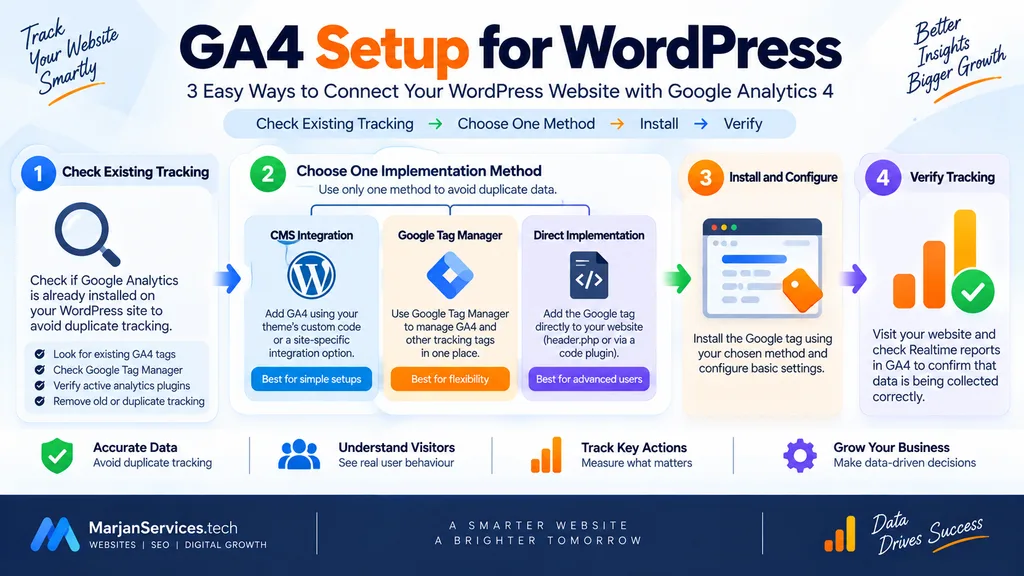
A practical workflow is:
- Create or confirm the correct GA4 property.
- Create the correct web data stream.
- Obtain the required Google tag information.
- Check whether Analytics is already installed.
- Choose one implementation method.
- Implement GA4.
- Visit the website.
- Verify data collection.
- Test important events.
- Document how tracking is installed.
Avoid Duplicate WordPress Tracking
Before installing another analytics plugin or adding another tag, check the existing website configuration.
GA4 might already be implemented through:
- A plugin.
- Google Tag Manager.
- A theme or integration.
- Existing website code.
- Another supported platform connection.
The important objective is reliable measurement—not simply adding another plugin.
How to Verify Your GA4 Setup
Verification should be treated as part of implementation rather than an optional final step.
Start by generating genuine test activity on the website and checking whether it reaches the correct GA4 property.
Check Realtime
Real-time reporting can help confirm whether recent activity is reaching Analytics.
Check that you are viewing the correct property and that your activity appears as expected.
Use Debugging Tools When Necessary
For more detailed implementation testing, appropriate debugging functionality can help verify whether expected events are being generated.
Initial Verification Checklist
Check:
- Correct GA4 property.
- Correct web data stream.
- Correct website.
- Correct tag implementation.
- Realtime activity.
- Expected page views.
- Important events.
- Key event configuration where applicable.
- Duplicate measurement.
Do not rely on analytics reports for important decisions until the underlying implementation has been reasonably verified.
GA4 Events Explained
Events are fundamental to the GA4 measurement model.
An event represents an interaction or occurrence measured on a website or app.
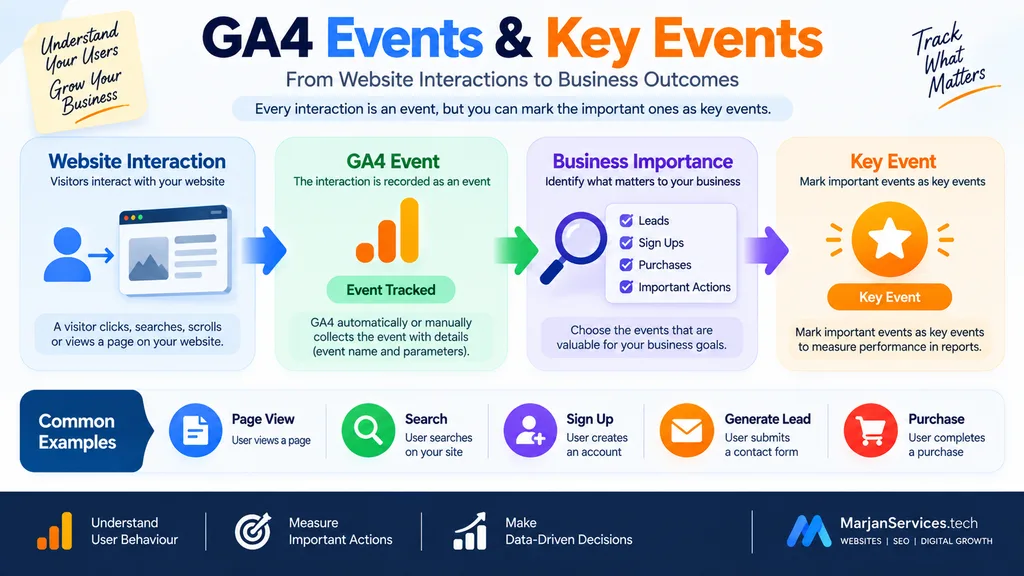
Depending on the implementation, events can represent actions such as:
- Page views.
- Link interactions.
- Searches.
- Sign-ups.
- Lead generation.
- Purchases.
GA4 provides different ways for events to be collected or configured.
Automatically Collected Events
Some events are collected automatically as part of GA4 measurement.
They provide useful foundational information without requiring every interaction to be created manually.
Automatic collection, however, should not be confused with a complete business measurement strategy.
Enhanced Measurement
Enhanced measurement can measure additional supported website interactions without requiring a separate custom implementation for every interaction.
Review the configuration instead of assuming every available measurement should automatically be treated as important.
Recommended Events
Google defines recommended events for common use cases.
Where an appropriate recommended event exists, using the expected event structure can provide a more standardized implementation than creating an arbitrary custom event.
Custom Events
Custom events can be useful when the interaction you need to measure is not sufficiently represented by existing measurement options.
Before creating one, ask:
- What question will this event answer?
- Is the interaction already measured?
- Is there an appropriate recommended event?
- What information needs to accompany the event?
- How will it be tested?
- Is the action important enough to become a key event?
This prevents unnecessary event proliferation.
GA4 Key Events and Conversion Measurement
Not every event has equal business importance.
GA4 allows important events to be identified as key events.
For example, depending on the website, meaningful actions could include:
- Successful lead submission.
- Account registration.
- Appointment booking.
- Purchase completion.
Avoid marking trivial interactions as key events merely to increase reported totals.
How to Set Up a Key Event
A practical process is:
- Define the business outcome.
- Determine which event accurately represents it.
- Implement the event where necessary.
- Test the event.
- Mark the appropriate event as a key event.
- Verify subsequent reporting.
Start with the outcome, not the metric.
GA4 Key Events vs Conversions
Current terminology needs careful handling because older GA4 tutorials may use “conversion” more broadly.
For Analytics reporting, key events identify actions important to the business. Conversion terminology is also relevant when important actions are used in advertising measurement and optimization.
For a beginner, a useful conceptual sequence is:
User interaction → Event → Important business action → Key event → Advertising conversion where applicable
This distinction helps prevent outdated terminology from creating implementation confusion.
How to Check and Track Website Traffic in GA4
Do not reduce website traffic analysis to one number.
Instead, ask:
- How are visitors reaching the website?
- Which landing pages introduce them?
- What do they do after arriving?
- Which traffic sources produce meaningful actions?
- Which pages contribute to business outcomes?
Users and Sessions
Users and sessions provide different perspectives on website activity.
Interpret them in context rather than treating them as interchangeable measures.
Acquisition
Acquisition reporting helps investigate where users or sessions originate.
This is useful for understanding traffic associated with channels and sources.
Landing Pages
Landing-page analysis can reveal which pages serve as entry points.
A useful landing-page review considers both traffic and outcomes.
A page receiving substantial traffic but few meaningful actions may need a different investigation from a page receiving little qualified traffic.
Engagement
Engagement information helps explain what visitors do after arriving.
Combine engagement with events and business outcomes rather than interpreting it in isolation.
Key Events
Traffic becomes more meaningful when connected with actions that matter.
A service business, for example, should usually care about whether relevant traffic contributes to qualified enquiries—not simply whether sessions increased.
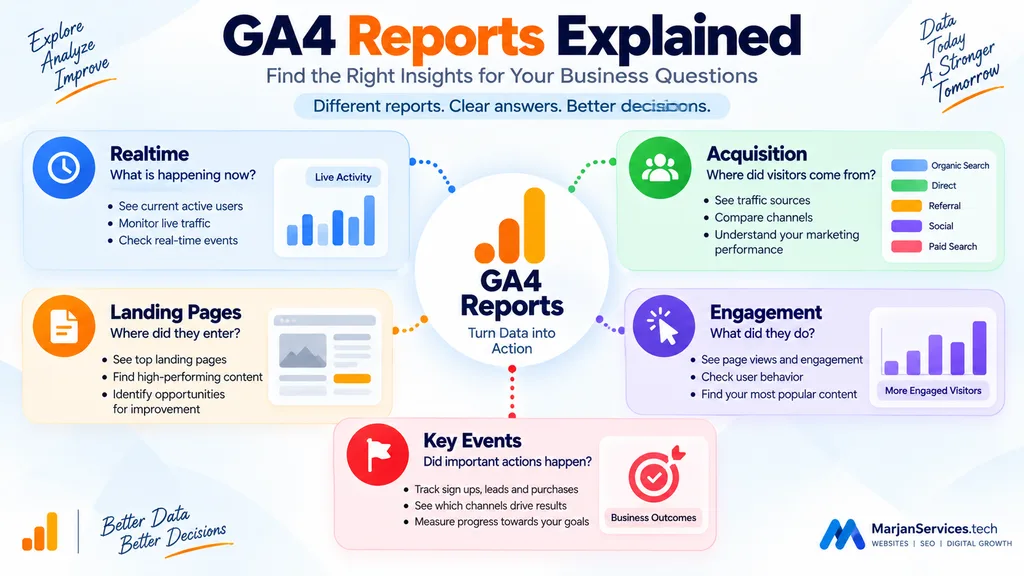
Google Analytics 4 Reports Explained
Beginners do not need to understand every available report immediately.
Start with reports that answer recurring questions.
Realtime
Use Realtime primarily to understand recent activity and help verify implementations.
Acquisition
Acquisition reports help investigate where users and sessions come from.
The exact report you use should depend on whether you are investigating user acquisition, session acquisition, or another specific question.
Engagement
Engagement reporting helps investigate user activity after arrival.
Events, pages, and other interaction-based information become important here.
Landing Pages
Landing-page reporting can help answer:
- Which pages introduce visitors?
- Which pages attract relevant traffic?
- Which landing pages contribute to key events?
- Which entry pages may need improvement?
Advertising Reports
Where relevant to the account and marketing setup, advertising reports can support attribution and campaign-related analysis.
Interpret attribution information according to the actual model and scope being used.
Google Analytics 4 for Small Businesses
A small business does not need to measure everything.
It needs to measure what supports real decisions.
| Business Question | Useful GA4 Measurement |
|---|---|
| Are people reaching the website? | Users, sessions and acquisition |
| Where do visits originate? | Acquisition data |
| Which pages introduce visitors? | Landing pages |
| Are visitors taking important actions? | Relevant events |
| Are enquiries being completed? | Lead-related key event |
| Are customers purchasing? | Ecommerce events and purchase data |
| Which sources contribute to outcomes? | Acquisition combined with key events |
The purpose is to move from traffic counting to outcome measurement.
A Practical GA4 Measurement Plan
Consider a service business whose primary objective is generating qualified enquiries.
Instead of creating dozens of arbitrary events, the measurement plan can start with the outcome.
Business objective: Generate qualified enquiries.
Important interaction: Successful lead submission.
GA4 measurement: An appropriate lead-related event.
Key event: Successful lead completion, which represents an important business outcome.
Useful dimensions: Landing page and acquisition source.
Business question: Which acquisition sources and landing pages contribute to meaningful enquiries?
This workflow keeps measurement tied to an actual decision.
GA4 Ecommerce Tracking
An e-commerce website requires more than basic page-view measurement.
Ecommerce measurement can represent important shopping interactions such as:
- Viewing an item.
- Adding an item to a cart.
- Beginning checkout.
- Completing a purchase.
- Processing relevant refund activity.
The precise implementation should follow the appropriate GA4 e-commerce specification.
Basic GA4 installation should not be interpreted as proof that ecommerce measurement is complete.
How to Set Up Ecommerce Tracking in GA4
A controlled e-commerce implementation should:
- Identify the e-commerce interactions that need measurement.
- Map them to appropriate GA4 ecommerce events.
- Implement the required event information and parameters.
- Test the implementation.
- Verify purchase information.
- Check for duplicate purchase events.
- Confirm relevant transaction information.
- Review reporting only after implementation quality has been checked.
Ecommerce data can affect significant business decisions, so accuracy should take priority over collecting data quickly.
Choose GA4 Measurement Based on Your Website Type
Different websites require different measurement priorities.
| Website Type | Typical Measurement Priority |
|---|---|
| Blog | Acquisition, landing pages and content engagement |
| Service business | Leads, acquisition and landing pages |
| Ecommerce store | Product interactions, checkout and purchases |
| Publisher | Content discovery and engagement |
| SaaS website | Acquisition, sign-ups and relevant product or funnel actions |
Do not copy another website’s analytics configuration without considering your own business model.
GA4 vs Google Search Console: Quick Difference
Google Analytics 4 and Google Search Console answer different questions.
GA4 primarily helps you understand activity on your website or app after measurement has been implemented. Google Search Console focuses on how your website performs in Google Search.
They can therefore complement each other without being substitutes.
For Search Console setup, indexing, search queries, impressions, clicks and SEO diagnostics, use the site’s dedicated Google Search Console Guide rather than trying to reproduce that workflow here.
Common GA4 Setup Mistakes
Duplicate GA4 Installation
Installing the same measurement through multiple uncontrolled methods can result in unreliable data.
Check the existing implementation before adding another plugin, tag or integration.
Using the Wrong Property or Data Stream
Verify that website data is being sent to the intended property and stream.
Not Testing the Implementation
Installation is not verification.
Use appropriate reporting and debugging methods to confirm that measurement works.
Creating Unnecessary Custom Events
Use existing appropriate measurement options before creating custom events.
Marking Too Many Events as Key Events
Reserve key events for actions that genuinely matter to the business.
Failing to Validate Ecommerce Measurement
Do not assume purchase measurement is correct simply because general website traffic appears in GA4.
Ignoring Duplicate Purchase Events
Duplicate purchase reporting can distort ecommerce analysis. Test transaction measurement carefully.
Using Outdated Terminology Without Context
Older tutorials may use terminology differently. Verify implementation guidance against current Google documentation.
GA4 Troubleshooting
Troubleshoot measurement systematically rather than changing several settings simultaneously.
No Realtime Activity
Check:
- Correct property.
- Correct web stream.
- Correct tag information.
- Tag implementation.
- Website configuration.
- Relevant consent or technical settings where applicable.
Page Views Work but an Important Event Does Not
Check:
- Whether the interaction is actually measured.
- Event configuration.
- Event naming.
- Relevant parameters.
- Whether the event appears during testing.
- Whether key-event status is configured appropriately.
Data Appears Duplicated
Investigate whether multiple implementations are active.
Potential causes can include:
- Multiple plugins.
- Direct tagging plus another implementation.
- Tag Manager plus duplicate direct implementation.
- Overlapping CMS integrations.
- Ecommerce events firing multiple times.
Find the source of duplication rather than attempting to compensate for incorrect data later.
Initial GA4 Setup Checklist
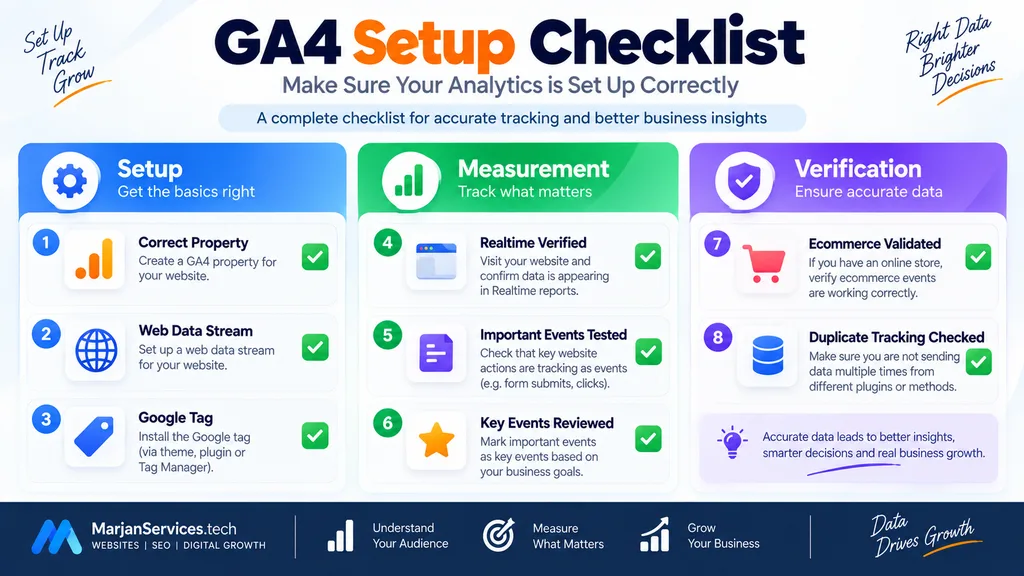
Use this checklist after implementation:
- Confirm the correct Analytics account.
- Confirm the intended GA4 property.
- Verify the web data stream.
- Document the tag implementation method.
- Confirm Realtime activity.
- Test important events.
- Identify genuine business outcomes.
- Configure appropriate key events.
- Validate e-commerce measurement separately where applicable.
- Check for duplicate measurements.
- Review account access.
- Record the implementation so future website changes can be tested correctly.
This is an initial GA4 implementation checklist, not a replacement for a broader recurring website maintenance or analytics audit.
Frequently Asked Questions
What is Google Analytics 4?
Google Analytics 4 is Google’s event-based analytics platform for measuring activity across websites and apps.
How do I set up Google Analytics 4 for a website?
Create or access the appropriate Analytics account, create the GA4 property and web data stream, implement the Google tag using a suitable method, and verify that data reaches the correct property.
How do I add Google Analytics 4 to WordPress?
First, check whether GA4 is already installed. Then use one appropriate WordPress integration, tag-management configuration, or controlled implementation method and verify the resulting measurement.
How can I check website traffic in GA4?
Start with the appropriate acquisition, landing page,e and engagement reports. Connect traffic measurements with relevant events and key events so that traffic is interpreted alongside outcomes.
What are GA4 events?
Events represent measured interactions or occurrences on a website or app.
What is a GA4 key event?
A key event is an event that represents an action particularly important to the business.
Should every GA4 event be a key event?
No. Key events should be reserved for meaningful outcomes rather than ordinary interactions.
Does GA4 automatically provide complete e-commerce tracking?
Basic GA4 installation should not be treated as complete e-commerce measurement. Appropriate e-commerce events and their required information need to be implemented and validated.
What should a beginner track first in GA4?
Start with acquisition, landing pages, and a small number of meaningful outcomes. For a service business, a successful lead may matter more than dozens of low-value interaction events.
Final Takeaway
A useful Google Analytics 4 setup begins with business questions, not with the largest possible collection of metrics.
Start with the correct GA4 property and web data stream. Implement the Google tag through one controlled method. Verify that the measurement works. Then identify the events and key events that represent genuine outcomes.
For a small business, the most useful analytics question is rarely simply:
How much traffic did the website receive?
A better question is:
Where did relevant visitors come from, what did they do after arriving, and did they complete an action that matters?
Build your GA4 measurement around answering that question.
Internal Links
- Google Search Console Guide
- Website Planning Checklist
- Website Maintenance Guide
- Website Mistakes to Avoid
- Technical SEO Guide
- Website Development Cost in Pakistan
- Website Development Cost Worldwide
- Types of Websites Explained
- Website Launch Checklist
- Website Features Checklist